TL;DR
- Calendly’s Free plan includes booking confirmations, but automated email and SMS reminders require a paid plan.
- The standard plan includes Workflows for email and text reminders.
- Teams and Enterprise add Managed Workflows, higher SMS allowances, and centralized admin control.
- To set up Calendly reminders, open Workflows, create a new reminder, choose email or SMS, set the send time, and customize the message.
- Assign the Workflow to the correct Event Type, or it will not run.
- A practical reminder cadence is 24 hours before by email and 1 hour before by SMS.
- SMS reminders are limited to 180 characters, come from a US number, and do not support replies.
- Accounts under 60 days old can use Calendly’s preset SMS templates only.
Calendly reminders are one of the simplest ways to reduce no-shows, but most teams either rely on a single calendar invite or use a reminder cadence that reaches people at the wrong times.
After setting up Calendly reminder workflows across dozens of client accounts, we have repeatedly seen that people rarely miss meetings because they are uninterested. They miss them because the booking disappears beneath emails, deadlines, and other calendar events. An invite sent three weeks ago is easy to overlook. A well-timed email or text reminder shortly before the meeting is much harder to miss.
We will explain how to set up Calendly reminders, which reminder features are available across different Calendly plans, and the email and SMS cadence we recommend for reducing no-shows without overwhelming invitees. We will also highlight the default settings and common setup mistakes that can quietly weaken your reminder workflow.

Can Calendly Send Automatic Reminders? (Quick Answer)
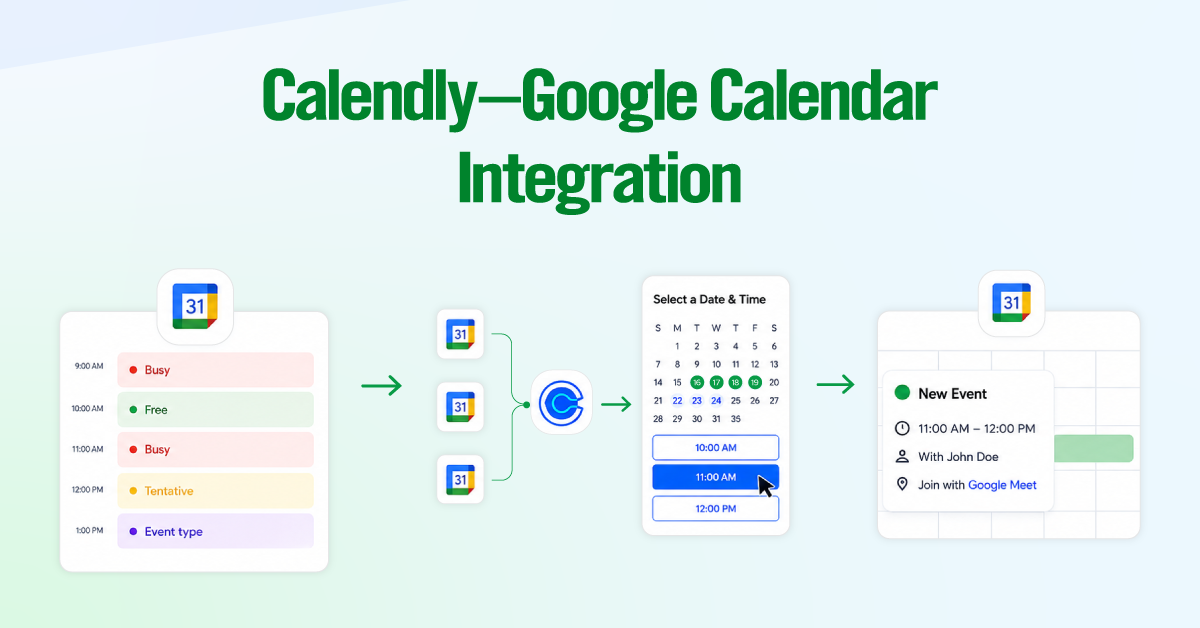
Yes. Calendly can automatically send email and SMS reminders before a scheduled meeting through Calendly Workflows. You can choose when each reminder is sent, customize the message, add meeting details, and create multiple reminders for the same event.
Basic Notifications
Calendly automatically sends notifications when someone books, reschedules, or cancels a meeting. Depending on the event settings, this may appear as a calendar invitation or an email confirmation that includes the meeting time, location, and links to cancel or reschedule.
Calendly Workflows
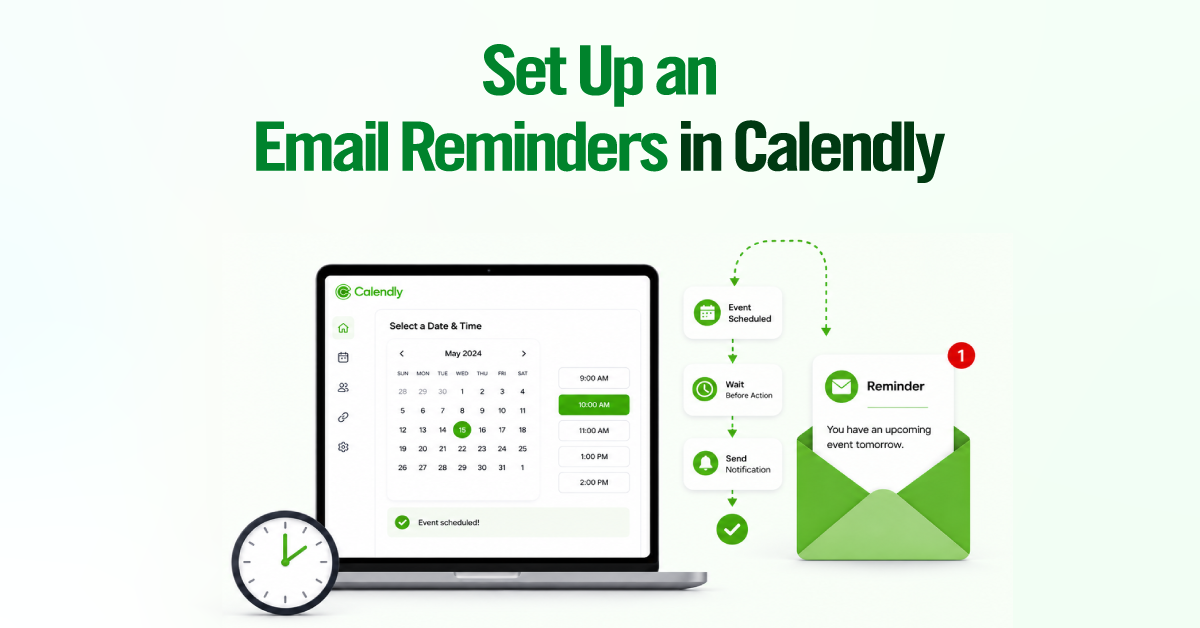
Workflows let you send automated messages at specific points before or after a meeting. For example, you could send:
- An email reminder 24 hours before the meeting
- An SMS reminder one hour before
- A reconfirmation message asking whether the invitee still plans to attend
- A follow-up email after the meeting
Workflow messages can include dynamic details such as the invitee’s name, event time, location, and rescheduling link. They can also be sent to the invitee, the meeting host, or other participants.
What Calendly Reminders Do You Get on Each Plan
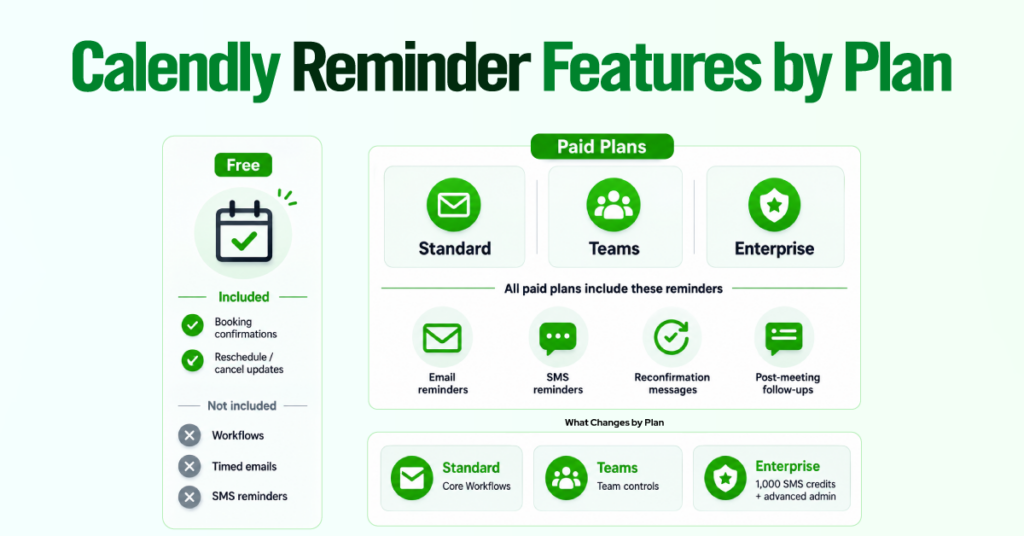
Calendly’s Free plan covers the essentials: invitees receive booking confirmations and updates when a meeting is rescheduled or canceled. However, it does not include Workflows, so you cannot build timed email or SMS reminder sequences.
Workflows become available on Calendly’s paid plans, including Standard, Teams, and Enterprise. That means even a Standard user can send automated email reminders, text reminders, reconfirmation messages, and post-meeting follow-ups.
The main differences between the paid plans are not the reminder types themselves. Higher tiers provide more SMS capacity, broader team controls, and stronger administrative features for managing Workflows across multiple users.
| Feature | Free | Standard | Teams | Enterprise |
| Price | $0 | $10/seat/mo (annual) | $16/seat/mo (annual) | Starts at $15k/yr |
| Booking confirmations | Yes | Yes | Yes | Yes |
| Automated email reminders (Workflows) | No | Yes | Yes | Yes |
| Automated SMS reminders (Workflows) | No | Yes | Yes | Yes |
| Managed Workflows (admin-controlled, team-wide) | No | No | Yes | Yes |
| SMS credits per seat, monthly | N/A | 250 | 250 | 1,000 |
| Event types | 1 | Unlimited | Unlimited | Unlimited |
| Connected calendars | 1 | 6 | 6 | 6 |
| Payment integrations (Stripe, PayPal) | No | Yes | Yes | Yes |
| CRM and marketing integrations (HubSpot, Mailchimp, Zapier, webhooks) | No | Yes | Yes, plus Marketo and Pardot | Yes, plus Microsoft Dynamics |
| Round robin and Salesforce lead routing | No | No | Yes | Yes |
| Support | Help center | 24/7 chat | 24/7 chat | Dedicated account support |
Free Plan. Booking Confirmations Only
No Workflow access at any price. If your no-show problem is real, this plan can’t fix it. There’s a legitimate workaround further down if you’re not ready to upgrade yet.
Standard Plan. Automated Email and SMS Reminders
This is where Workflows unlock: they cover both automated email and SMS reminders, not just email.
Teams and Enterprise. Managed Workflows and Higher SMS Limits
Both add Managed Workflows, which let an admin build a single reminder sequence and roll it out across every team member’s events, instead of configuring each person’s account by hand.
| Legitimate workaround: Connect Zapier to an external SMS or email tool as a stopgap. It works on any tier, but it requires more setup effort than native Workflows and is only worth doing until you’re ready to upgrade. |
How to Set Up an Email Reminder in Calendly (Step by Step)
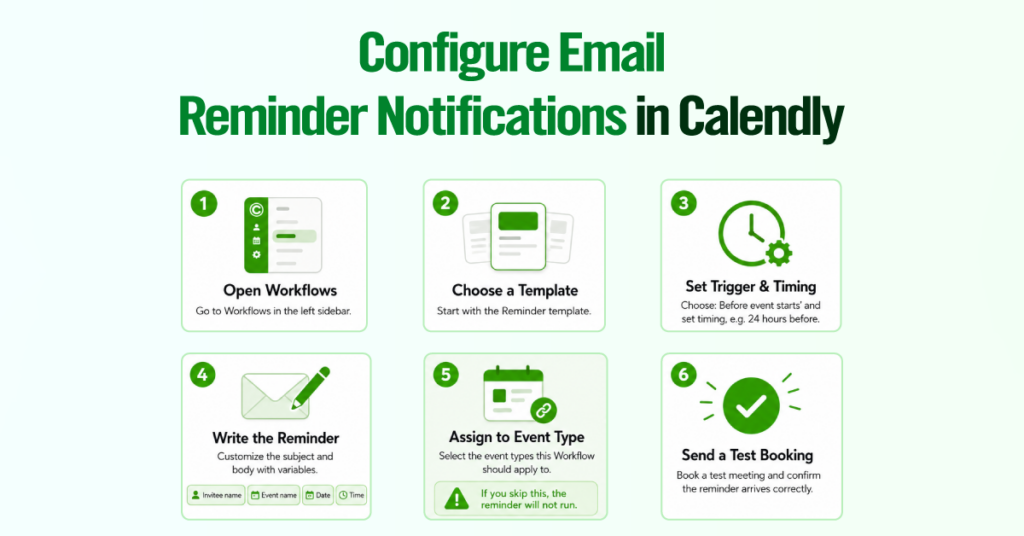
The fastest way to stop email no-shows is with a single-reminder Workflow attached to your busiest event type. Here’s exactly how to build one.
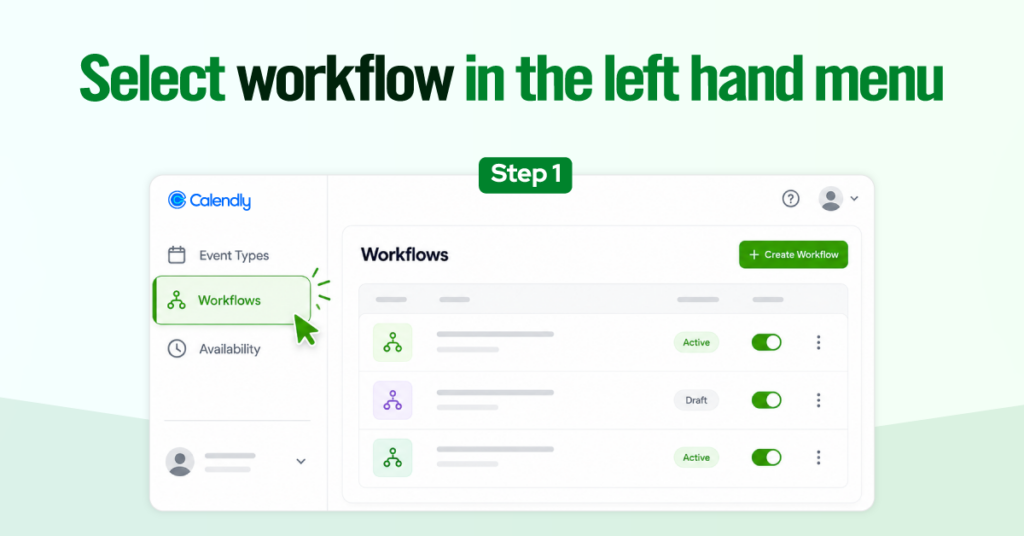
Step 1: Open Workflows From the Sidebar
Log in to Calendly and select Workflows from the left-hand navigation. This is a separate section from your Event Types and from Availability, so if you’ve only ever touched booking pages before, this will be new territory.
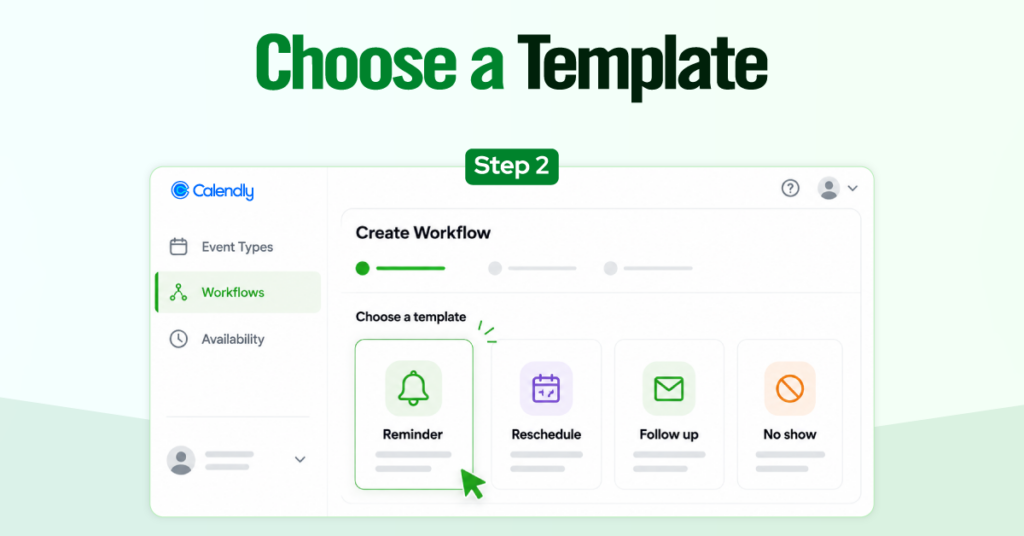
Step 2: Choose a Template or Build Your Own
Calendly ships with ready-made templates for reminders, reconfirmations, follow-ups, and no-show outreach. For a first reminder Workflow, start with the built-in Reminder template rather than building from a blank canvas. You can fully edit every line afterward.
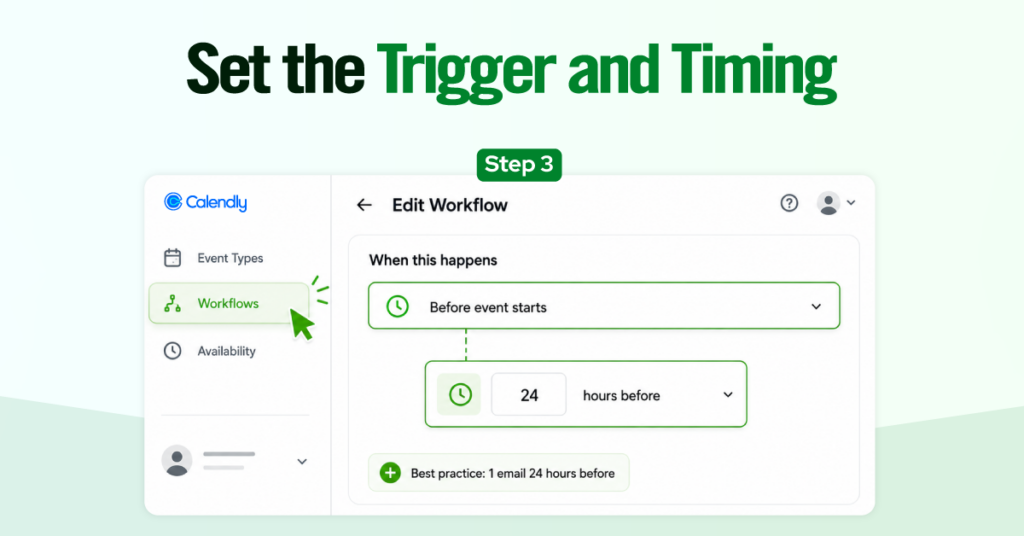
Step 3: Set the Trigger and Timing
In the “When this happens” section, pick your trigger, in this case “Before event starts,” and set the timing, for example, 24 hours. Calendly will fire this automatically at that exact offset from the meeting time, regardless of your own working hours.
| Calendly Consulting Expert Suggestion: Stop at two reminders total, one email a day out and one text an hour out. A third message rarely improves attendance and reads as pushy, especially with prospects who haven’t committed to you yet. |
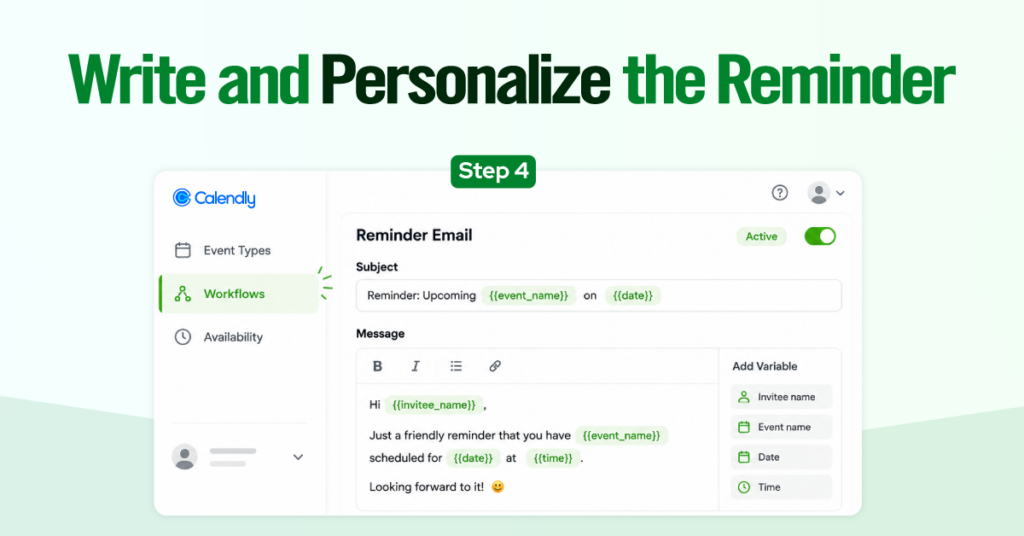
Step 4: Write and Personalize the Reminder Message
Edit the subject line and body copy so it doesn’t read like a generic system notice. Insert variables like invitee name, event name, date, and time so each message is personalized without any manual work on your end.
Step 5: Assign the Workflow to Your Event Type (The Step Everyone Skips)
In the “Which event types will this apply to?” section, select every Event Type you want this reminder attached to, then apply. Skip this step, and your beautifully written Workflow will simply never fire for anyone.
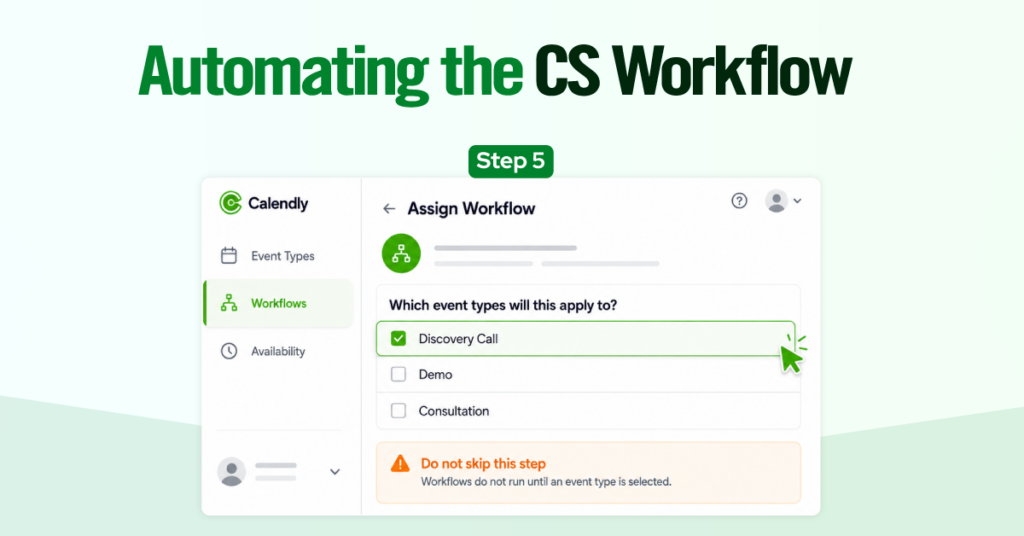
| Workflows do not run account-wide. A reminder: the workflow you build does absolutely nothing until it’s assigned to at least one Event Type. This is the number one reason a client tells us, “the reminders aren’t working,” when really, they were never turned on for that meeting type in the first place. |
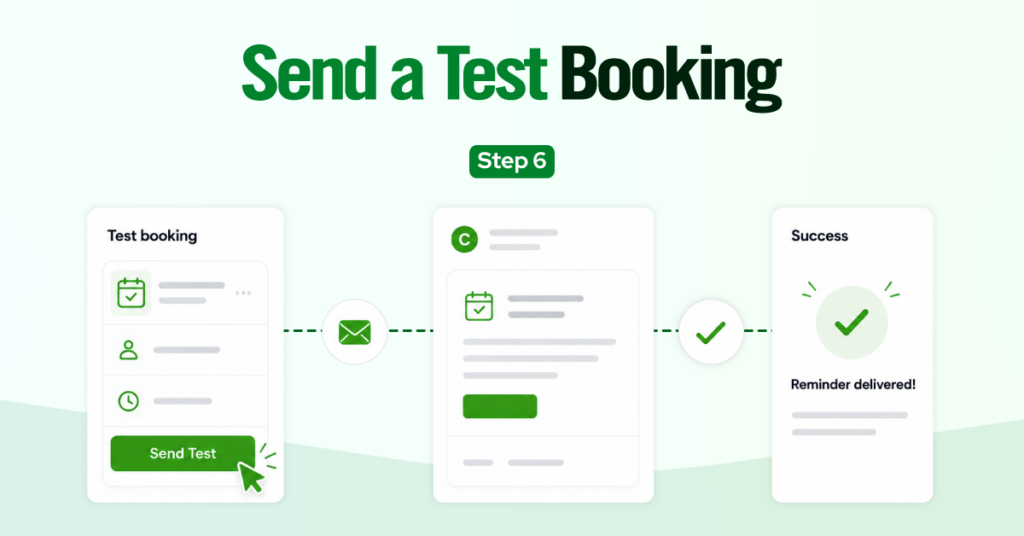
Step 6. Send a Test Booking to Confirm It Fires
Book a test meeting on the Event Type you just assigned, using a short trigger window if your plan allows it, and confirm the message actually arrives with the correct variables filled in. Don’t assume it works. Verify it.
How to Set Up SMS Text Reminders Using Calendly Workflows
Text reminders follow the same Workflow engine as email, with a few extra steps around deliverability and consent.
| Calendly can’t make the phone number field mandatory at booking because invitees must actively opt in to receive texts under privacy regulations such as GDPR. That means your text reminder Workflow only reaches the portion of invitees who checked the SMS box, not your full invitee list. |
Step 1: Connect your email provider first.
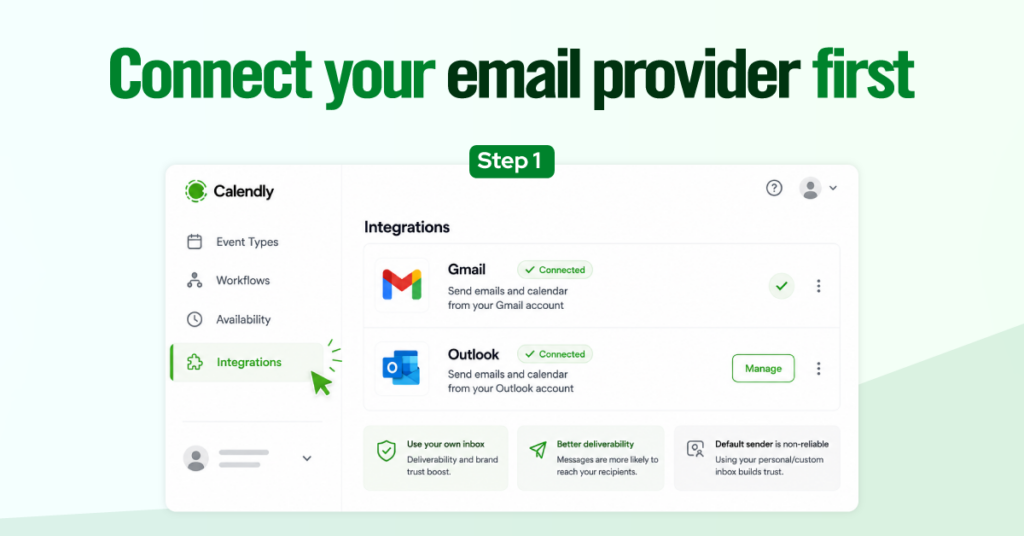
Before touching SMS, integrate your Gmail or Outlook account under Integrations. Calendly’s default sending address, notifications@calendly.com, gets caught in spam filters more often than mail sent from your own connected inbox, and a clean email channel makes your combined email-plus-text sequence far more reliable.
Step 2: Navigate to Workflows.
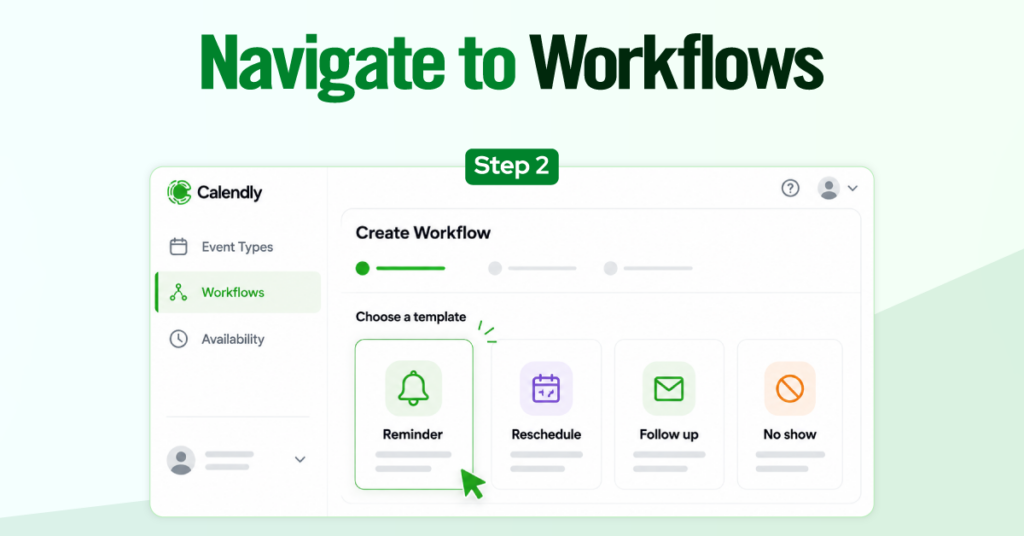
Same location as before, in the left-hand sidebar of your Calendly dashboard.
Step 3: Choose a template or build from scratch.
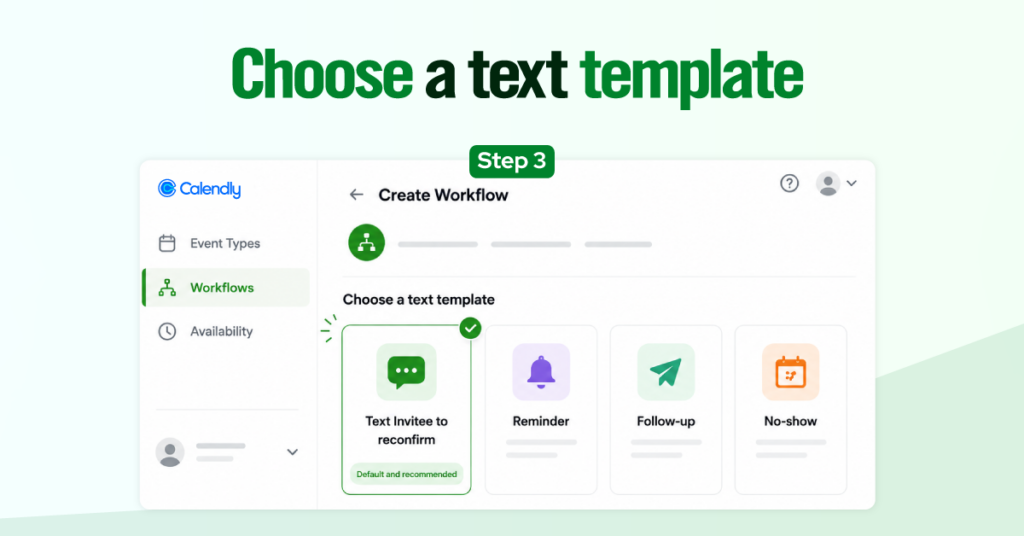
For text specifically, we recommend the “Text invitee to reconfirm” template as your starting point. It already includes the confirmation link variable, which prompts the invitee to actively reconfirm rather than passively receive a reminder, and active reconfirmation catches far more schedule conflicts before they become no-shows.
Step 4: Set the trigger (timing).
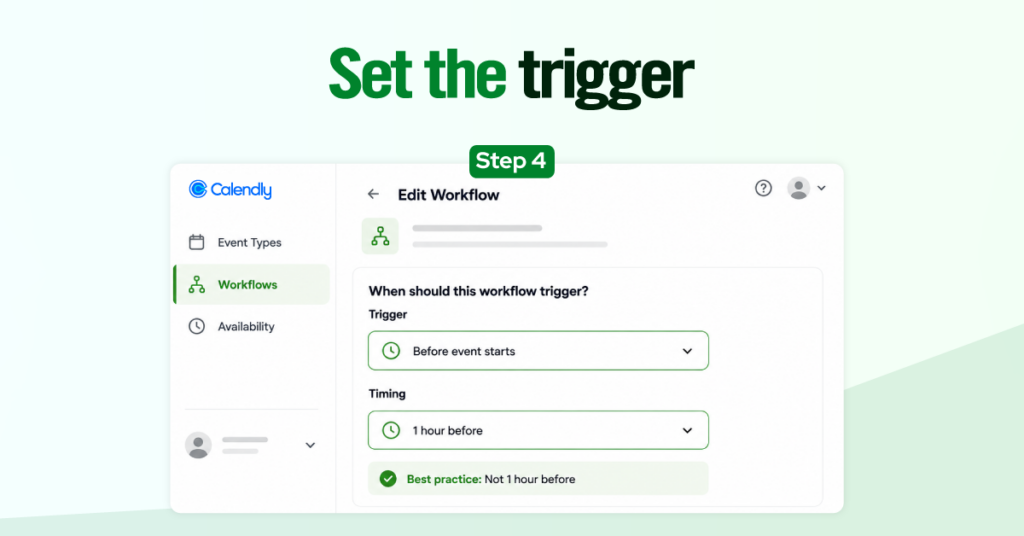
A one-hour-before trigger works well for text specifically, since the entire point of SMS is catching someone close enough to the meeting that they’ll actually see it before they forget.
Step 5: Customize the message and add variables.
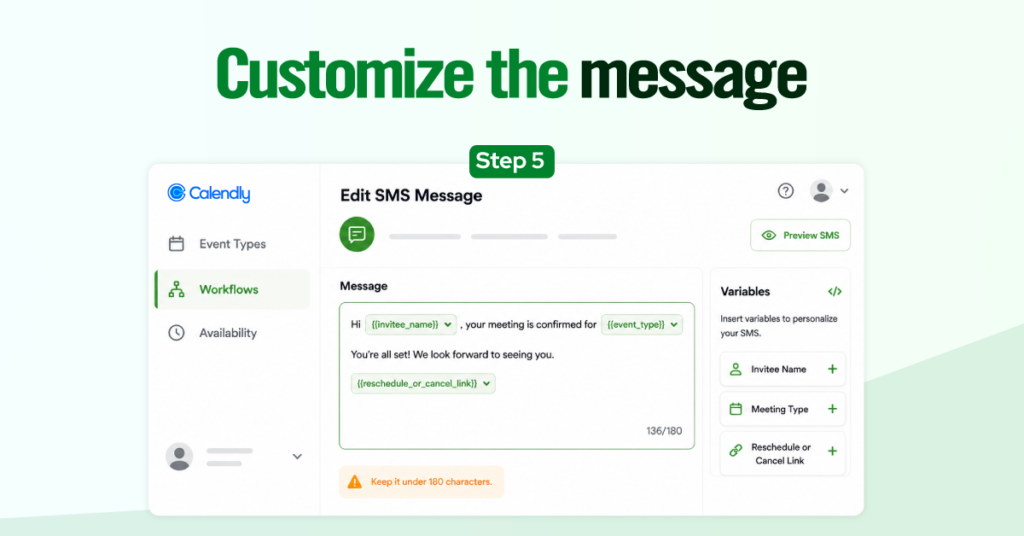
Use the Variables button in the message editor to insert the invitee’s name, the meeting time, and a cancellation or reschedule link. Keep the whole message under 180 characters, since that’s Calendly’s hard cap per text, and skip URL shorteners like bit.ly, since some carriers block shortened links outright.
The Perfect Reminder Cadence (Copy and Paste Templates)
Timing and message tone matter as much as the automation itself. Here’s the cadence we recommend to clients, based on what actually reduces no-shows without becoming annoying.
The 24-hour email
Send this the day before, always with a reschedule link included so anyone with a conflict has an easy exit instead of just ghosting the call.
| Subject line: Looking forward to our chat tomorrow Hi {{invitee_name}}, Quick reminder: we’re set to talk tomorrow at {{event_date}} at {{event_time}}. If anything comes up and you need to reschedule, just use this link: {{reschedule_link}} Talk soon, {{host_name}} |
The 1-hour SMS
Short, friendly, and under the character limit.
| Hi {{invitee_name}}, looking forward to our chat in 1 hr! Join here. {{meeting_link}} |
Troubleshooting Common Calendly Reminder Issues
Why can’t I customize my SMS text?
If your Calendly account is less than 60 days old, the custom SMS copy is temporarily locked, and you’ll see a banner explaining it. Calendly restricts SMS customization for brand-new accounts as an anti-spam measure. You’ll only be able to use the built-in templates until the account ages past that window, at which point full customization opens up automatically. No action is needed on your end.
Where do SMS replies go?
You won’t see it anywhere. Calendly sends text reminders through Twilio using a toll-free, randomly assigned US number, not your personal phone number, and not a short code. If an invitee replies to that text, the reply isn’t delivered to you or monitored by Calendly. If you need two-way texting, that requires a separate third-party SMS platform connected through Zapier or a webhook.
Why are my reminders going to spam?
Most often, it’s because the message is still being sent from notifications@calendly.com instead of your own inbox. Integrate your Gmail or Outlook account so that Workflow emails are sent from your actual address. That single change does more for deliverability than any subject-line tweak.