TL;DR
- Calendly connects to Google Calendar to check availability in real time, block booked time, and automatically add new meetings.
- You can connect up to 6 calendars (Free plan: 1 calendar, paid plans: up to 6) to check for conflicts.
- The most common sync failure is a calendar event marked “Free” instead of “Busy”; Calendly ignores Free events entirely.
- To automatically add a Google Meet link, set the event location to “Google Meet” in Calendly’s event type settings.
- Always designate one calendar as your “add to calendar” target to prevent duplicate meetings.
Calendly integrates with Google Calendar by reading your free or busy status to block unavailable slots and automatically write new meeting events back to your chosen calendar. The sync is bidirectional and near real-time, but it depends entirely on correct configuration and calendar event status settings.
If you’ve ever had a contact book a Calendly meeting, only to discover it conflicts with a personal appointment on a separate Google Calendar, you know how frustrating a misconfigured integration can be. The solution is rarely obvious from the Calendly dashboard alone.
Calendly is now used by 86% of Fortune 500 companies and has facilitated over 200 million scheduled meetings worldwide (Contrary Research, October 11, 2024). Despite that scale, misconfigured calendar integrations remain the top support complaint category the platform receives. Getting the setup right once saves hours of reactive scheduling damage control.

In today’s blog, we’ll explain how the Calendly and Google Calendar integration works, how to set it up correctly, how to manage multiple calendars, and how to troubleshoot the most common issues.
How the Calendly–Google Calendar Integration Works
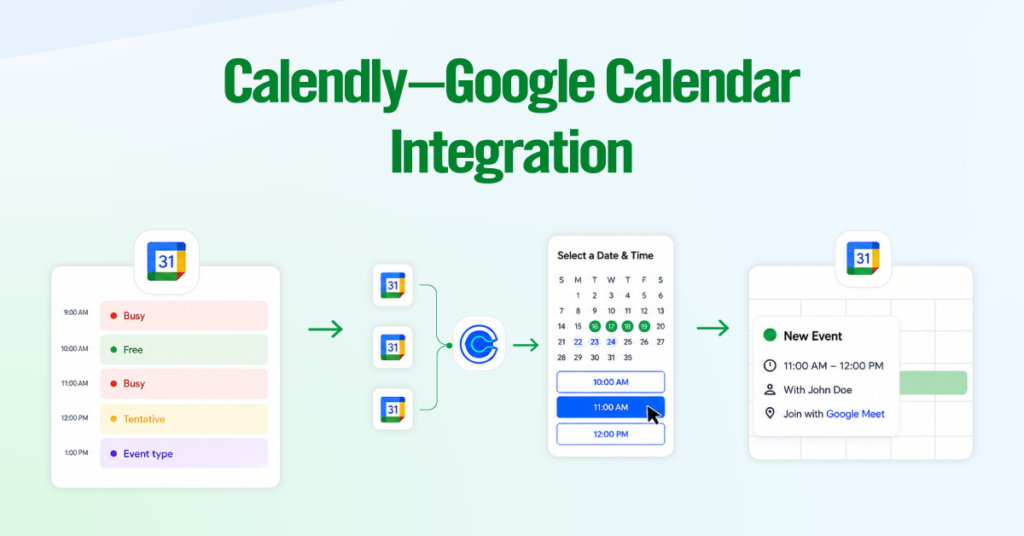
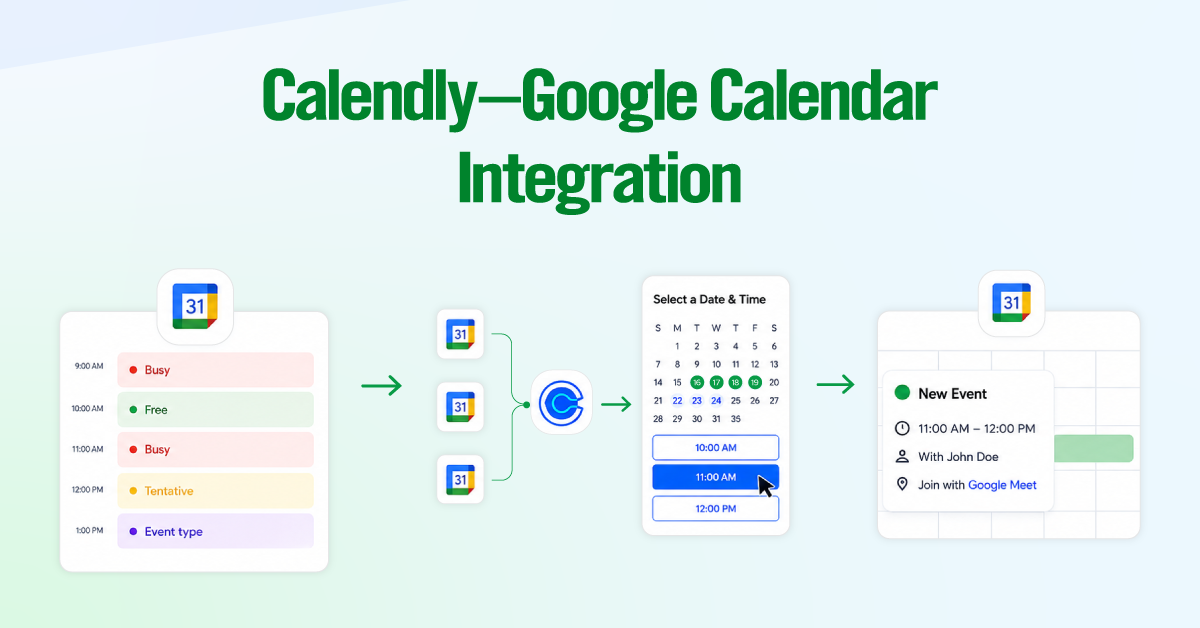
The Calendly–Google Calendar integration works by doing 3 things:
- Reading your calendar’s free and busy status to determine which time slots are available,
- Blocking those slots from invitees in real time, and
- Writing a new event back to your calendar the moment someone books.
Under the hood, it uses Google’s Calendar API with OAuth 2.0 authorization to read and create calendar data. But from a practical standpoint, all of that is invisible.
1. Reads Free and Busy Status
Before anything else happens, Calendly reads the “Show as” status field on every event in your connected calendars. The signal determines whether a time slot is taken.
- Busy: Calendly treats this time as unavailable.
- Free: Calendly treats this time as open, even if an event is sitting in that slot.
- Tentative: Calendly’s behavior depends on a toggle in your settings (covered in the troubleshooting section).
- Out of Office: Calendly treats this as Busy and blocks the time.
2. Checks for Conflicts
Calendly builds your real-time availability by checking the free/busy status across all calendars you’ve selected for conflict detection whenever someone opens your booking page. This prevents double bookings by blocking overlapping events from both personal and work calendars.
Paid plans (Standard, Teams, and Enterprise) support conflict checking across up to six Google calendars, while the Free plan supports one. Calendly only reads free/busy status, so your availability remains accurate without exposing private calendar details.
3. Adds New Events
After a booking is confirmed, Calendly adds the meeting to only one calendar: your designated “Add to Calendar” calendar. This is different from the calendars Calendly checks for conflicts.
The new calendar event includes the invitee’s name, email address, meeting link, and any answers they submitted through your booking questions. Both you and the invitee automatically receive a calendar invitation when the booking is made.
You choose one destination calendar for each Calendly account. This calendar does not have to be the same calendar Calendly uses to check for conflicts, but in most cases, it should be. That way, newly booked meetings are automatically included in future availability checks.
What Are the Calendar Limits by Calendly Plan?
Before you connect anything, confirm which Calendly plan you are on. Calendar connection limits are plan-gated, and exceeding them requires a paid upgrade.
| Calendly Plan | Max Calendar Connections | Calendar Conflict Check | Google Meet Auto-Link |
| Free | 1 Google Calendar | 1 calendar only | Yes |
| Standard | 6 calendars (across accounts) | Up to 6 simultaneously | Yes |
| Teams | 6 calendars per member | Up to 6 simultaneously | Yes |
| Enterprise | 6 calendars per member | Up to 6 simultaneously | Yes + SAML SSO provisioning |
Additional plan-level facts worth knowing before setup:
- Google Workspace (formerly G Suite) accounts can be connected alongside personal Gmail calendars on paid plans.
- If you manage a team on the Teams plan, each team member manages their own calendar connections. Admins cannot centrally connect calendars on behalf of members.
- Google Calendar sub-calendars (secondary calendars within a single Google account, like “Work” or “Kids’ Activities”) count as separate calendars toward your limit.
- iCloud Calendar is no longer supported for new Calendly users as of August 2024. Google Calendar, Outlook, and Office 365 are the supported options for new connections.
How to Connect Calendly to Google Calendar (Step-by-Step)
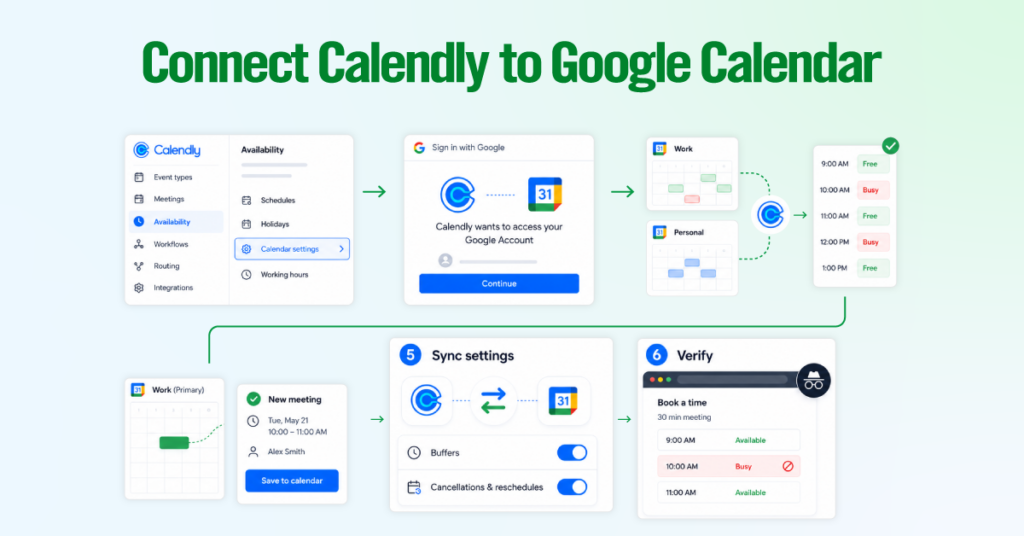
Connecting Calendly to Google Calendar takes under five minutes. The process below reflects the current Calendly interface as of March 2026, per Calendly’s official help documentation.
Step 1: Go to your Calendar Settings
- From your Calendly home page, select Availability from the left sidebar.
- At the top of the page, select the Calendar settings tab.
Step 2: Connect your Google Account
- To connect your first calendar, select Connect next to Google Calendar.
- To add an additional Google account, select + Connect calendar account, then choose Google Calendar.
- A Google sign-in window will open. Sign in and grant Calendly access. You will return to the Calendar settings page once the connection is complete.
If you signed up with a Google email address, your calendar may already be connected and listed here.
Step 3: Configure Conflict Check Calendars
- Under the connected account, select which Calendly calendars to check for conflicts. Any event marked Busy on those calendars will block the corresponding time slot on your booking page.
- Enable every sub-calendar that holds events you want to protect in that Google account. This is the step most users skip, which is why personal appointments fail to block Calendly availability.
Step 4: Set Your “Add to Calendar” Destination
- Choose the single calendar where Calendly should write new meeting events. New bookings will only appear on this calendar, not on any other connected calendar.
Choose your primary work or personal calendar here, not a secondary or shared calendar, to avoid confusion.
Step 5: Configure Sync Settings (Optional but Recommended)
Calendly now offers additional sync controls that keep your Google Calendar and Calendly account in two-way alignment:
- Include buffers on this calendar: Calendly adds your configured buffer time to each meeting as separate events in Google Calendar. Deleting a buffer event in Google Calendar also removes it from Calendly.
- Automatically sync cancellations and reschedules: When you decline or delete a Calendly meeting directly in Google Calendar, it is also canceled in Calendly. When you update a meeting’s date or time in Google Calendar, Calendly automatically reschedules it.
Step 6: Verify the Integration
- Open a new incognito window and visit your Calendly booking page URL.
- Create a test event in Google Calendar for a future time slot. Set the event’s “Show as” status to Busy.
- Refresh your booking page. That slot should now be unavailable to invitees.
- If it still shows as open, the test event is set to “Free”; see the troubleshooting section below.
Managing Multiple Calendars: Work, Personal, and Sub-Calendars
Managing multiple calendars correctly is the difference between a scheduling setup that works reliably and one that randomly double-books you. The core rule is simple: you can connect multiple calendars for conflict checking, but you can choose only one calendar per Calendly account as the destination for new bookings.
Using Work and Personal Google Accounts Together
On paid Calendly plans, you can connect your work Google Workspace account and your personal Gmail account as separate calendar connections. Then, enable conflict checking for both.
If you use Calendly mainly for professional meetings, set your work calendar as the “Add to Calendar” destination. This means new Calendly bookings will be added to your work calendar, while events from your personal calendar can still block your availability.
For example, a dentist appointment on your personal Gmail calendar can still mark you as unavailable in Calendly, even though the appointment lives in a completely separate Google account.
Using Google Calendar Sub-Calendars
Sub-calendars are secondary calendars created inside a single Google account. Common examples include Birthdays, Holidays, or custom calendars such as Client Calls.
Calendly can check sub-calendars individually for conflicts. You can turn each one on or off in your Calendar Sync settings, depending on whether its events should affect your availability.
Shared Google Calendars also appear as sub-calendars. If a colleague, assistant, or partner shares a calendar with you, you can include that calendar in Calendly’s conflict checking as well.
Troubleshooting: When Calendly and Google Calendar Don’t Sync
Most Calendly sync issues fall into 1 of 3 categories. Identifying which category applies to your situation significantly reduces diagnostic time.
Meeting Booking Over Blocked Time
If Calendly allows someone to book over a time that should have been blocked, the cause is usually the event’s Free/Busy status.
Before checking anything else, open the event in Google Calendar and look for the “Show as” field. If it is set to anything other than Busy or Out of Office, Calendly will not treat that time as unavailable.
If the event is already marked correctly, check these other common causes:
- The event may be on a sub-calendar that is not enabled for conflict checking in Calendly’s Calendar Sync settings.
- The Google account that contains the event may not be connected to Calendly.
- Calendly’s access to Google Calendar may have expired or been revoked. Open your Calendar Sync settings and look for a warning or reconnect prompt.
- The event may have been created after the invitee opened your booking page. Calendly checks availability when the page loads. So if someone leaves your booking page open for 15 minutes while you create a new calendar block, that new blocked time may not appear unless they refresh the page.
The “Free/Busy” Status Trap (The Most Common Cause)
The free/busy setting controls whether Calendly treats a calendar event as available or unavailable time.
This is one of the most common reasons double-bookings happen. To prevent conflicts, open the event in Google Calendar and check the availability setting. Make sure important meetings, appointments, focus blocks, and out-of-office time are marked as Busy or Out of Office.
If an event is marked Free, it remains visible on your calendar but won’t prevent someone from booking that time, which can lead to double bookings.
Events in Google Calendar May Be Set to Free by Default
Some event types are especially easy to miss:
- All-day events: Unless you manually change them, all-day events in Google Calendar may be set to Free. If so, Calendly ignores them completely.
- Invitations you have not accepted: Tentative or unaccepted events may be treated as Free, depending on your Google Calendar and Calendly settings.
- Events created by third-party apps: Some apps add events to Google Calendar without setting the correct availability status.
- Recurring events created as Free: If the original recurring event was created as Free, future instances may keep that same status.
How to Fix an Individual Event
- Open the event in Google Calendar.
- Click the pencil icon to edit the event.
- Select More options if the availability field is not visible in the quick-edit panel.
- Find the Status or Show as dropdown.
- Change the event from Free to Busy.
- Save the event.
Connection and Sync Settings
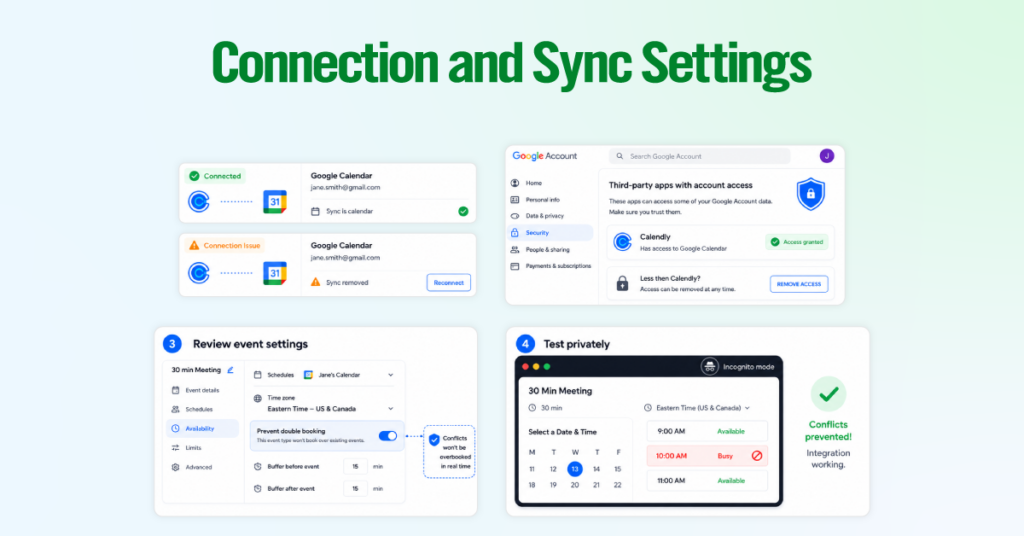
Calendly appears to be connected to Google Calendar, but your availability is not updating correctly.
Step 1: Confirm the Calendar Connection Is Active
In Calendly, go to Settings and open Calendar Sync.
A healthy connection shows your calendar name without warning icons or Reconnect prompts.
If you see a yellow warning icon or a Reconnect button, the Google authorization may have expired. Click Reconnect, complete the Google authorization process again, and Calendly should resume syncing with your calendar.
Step 2: Check Whether Google Revoked Access
Open your Google account settings at myaccount.google.com.
Go to Security > Third-party apps with account access.
Confirm that Calendly appears in the list and still has active access.
If Calendly was removed from this list, reconnect it from Calendly’s Calendar Sync settings. This creates a fresh authorization token and restores the integration.
Step 3: Review Event Type Settings
Each Calendly event type has its own availability settings, which can affect how calendar conflicts are handled. A specific event type may be using custom hours or availability rules, which can make it appear that Google Calendar conflicts are being ignored.
Open the relevant Calendly event type, go to its Availability settings, and confirm it is using the correct schedule with calendar conflict checking enabled.
Step 4: Test in a Private Browser Window
Availability pages can sometimes show cached information. To test accurately, open your Calendly booking page in an incognito or private browser window.
This helps confirm whether the issue is with the actual calendar sync or just a cached version of the booking page.
Complete the Loop: Automate Meet Links, Confirmations, and Follow-Ups
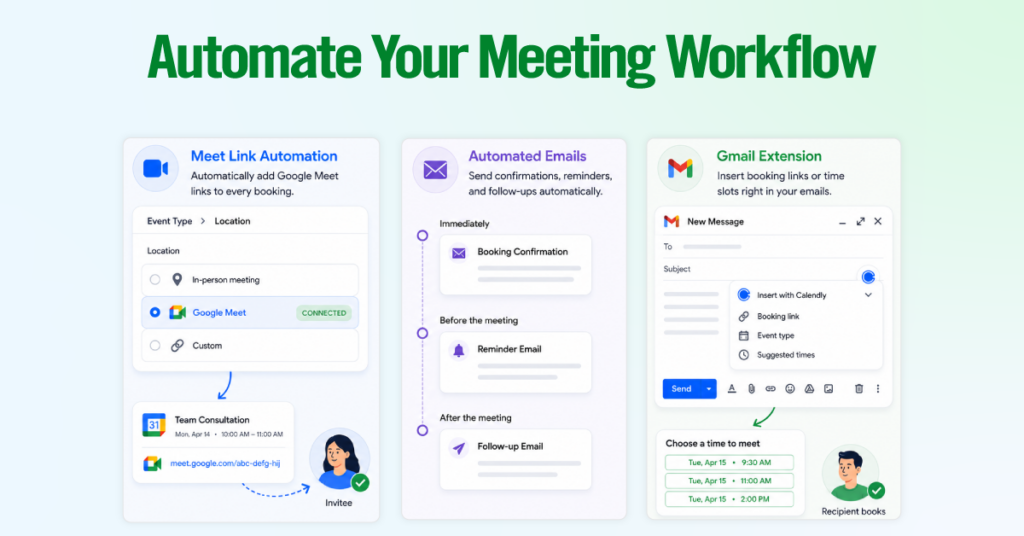
The Google Calendar connection manages availability and creates calendar events. The three features below complete the rest of the meeting workflow: adding the video link, sending communications, and making it easier to book meetings directly from Gmail.
Meet Link Automation
Connecting Google Calendar does not automatically generate Google Meet links. That requires a separate configuration step inside each event type.
Calendly > Event Type > Location > Google Meet > Save
Once saved, every new booking for that event type will automatically generate a unique Google Meet link. The link appears in both your calendar invite and the invitee’s. Calendly does not reuse Meet links; each meeting gets a fresh one.
One thing worth knowing for Google Workspace users: the Calendly account that authorizes Google Meet must belong to an account with Meet access. If your organization has restricted Meet to specific domains, your Workspace admin may need to adjust those settings before Meet links generate correctly.
Automated Emails
Calendly handles three types of automated emails out of the box: a booking confirmation sent immediately after someone books, a reminder sent before the meeting, and an optional follow-up sent after it ends.
Calendly > Event Type > Notifications and Cancellation Policy
From there, you can edit the confirmation message, set reminder timing, and add a follow-up email with next steps, a feedback link, or a meeting summary. Customization depends on your Calendly plan.
The Free plan supports basic confirmation emails, while Standard and higher plans give you more control over message content, timing, and the ability to send multiple reminders. By default, emails are sent from a Calendly-branded address; custom sending domains require SMTP setup on higher plans.
The Gmail Extension
The Calendly for Gmail extension adds a Calendly icon directly into your Gmail compose toolbar. When you click it while writing an email, you can insert your booking link, a specific event type, or a set of proposed time slots inline, no copy-pasting required.
The extension is available for Chrome, Firefox, and Safari. Once installed and authorized, it reads your live Google Calendar availability, so any times you offer inside an email are accurate to that moment. The recipient clicks a time and books without leaving their inbox.
Final Summary
A reliable Calendly and Google Calendar setup depends on three things: connecting every calendar that should block your availability, enabling conflict checking for each one, and choosing one calendar for new bookings.
Most double-bookings occur when events are marked as Free rather than Busy. If something should block your time, make sure its status is set to Busy or Out of Office.
Once configured correctly, Calendly should handle bookings, Meet links, reminders, and follow-ups with little to no manual work.