TL;DR
- Calendly auto-generates a Zoom, Google Meet, or Teams link for every booking once you connect the platform and select it as the location for each event type.
- Pick Zoom for external client and sales calls, but the free plan caps group meetings at 40 minutes.
- Choose Google Meet if your team uses Google Workspace, but disable Google Calendar’s automatic Meet links to avoid duplicate links in a single invite.
- Select Microsoft Teams if you’re on Microsoft 365.
- If a link won’t appear, it’s almost always one of three things: the platform isn’t selected for that event type, the calendar connection is broken (reconnect it), or a dependency like Outlook isn’t linked.
Calendly can automatically create Zoom, Google Meet, and Microsoft Teams links when your video conference tool is connected and selected as the event type location.
Once configured, each scheduled meeting automatically receives the correct video conferencing link. This reduces manual work, prevents missing links, and creates a smoother booking experience for both hosts and invitees.
Manually sharing meeting links is one of the most common scheduling mistakes professionals make. You copy a Zoom link, paste it into an email, and hope it lands correctly. When it doesn’t, the first impression suffers before the meeting even starts.
This guide walks you through how to complete your Calendly Zoom integration, Calendly Google Meet integration, and Calendly Microsoft Teams integration, how to choose the best video conferencing tool, and how to fix the issue when a Calendly meeting link is not generated. And how to troubleshoot the most common problems that come up.

What Problem Does Calendly Integration Solve?
Calendly integration automatically generates and delivers video meeting links the moment someone books, so you never have to manually copy, paste, or resend a link. It lets people book time with you directly, without the back-and-forth emails asking “when are you free?”
But scheduling is only half the job. The other half is making sure the actual meeting works: the right link, the right platform, delivered to the right person automatically.
That’s what calendly video conferencing integration solves.
The benefits are concrete:
- No double booking: Calendly checks your calendar before showing availability
- Auto-generated meeting links: unique for every booking, not a recycled room
- Automatic calendar syncing: both parties get the invite without extra steps
- Fewer no-shows: confirmation emails and reminders carry the meeting link automatically
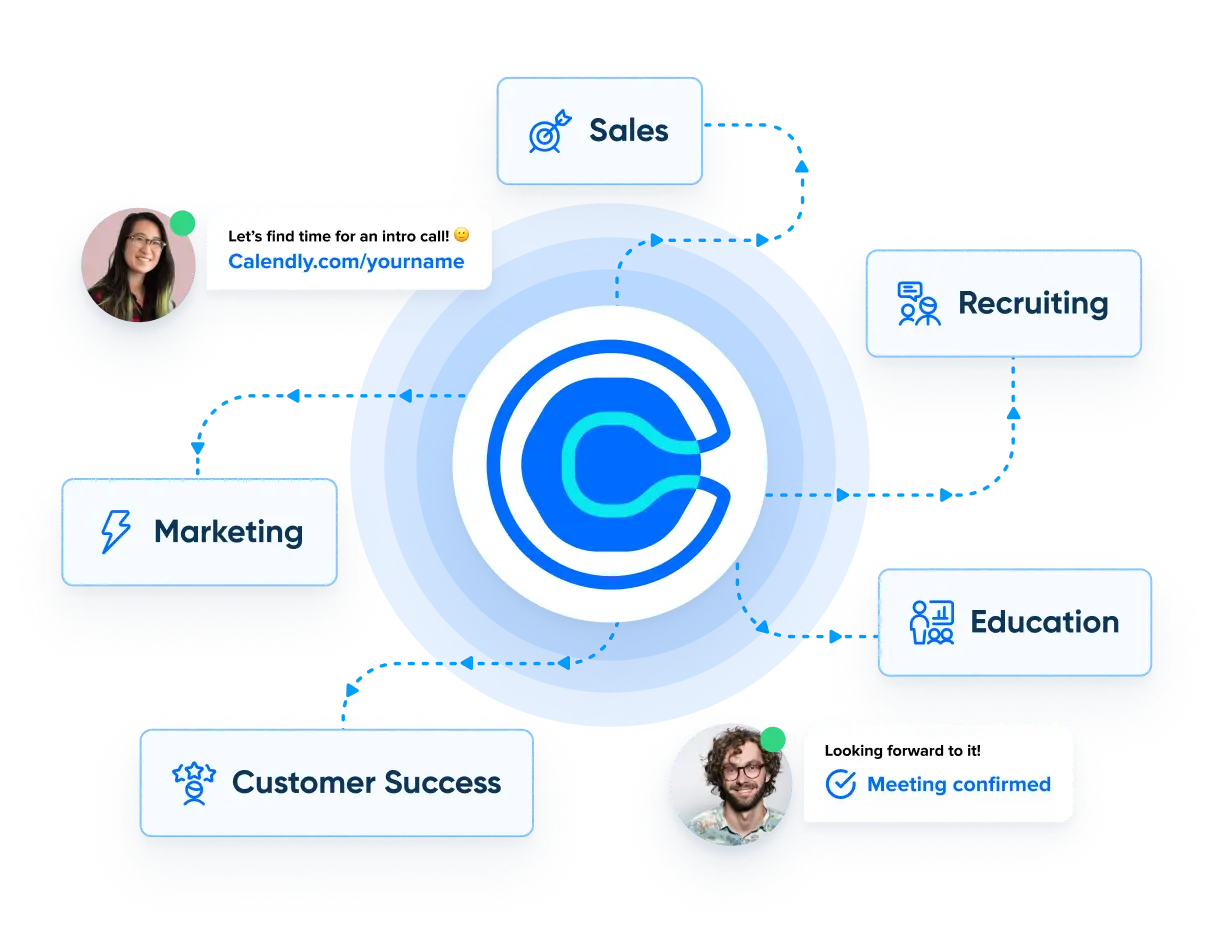
This matters most for client-facing roles such as sales, consulting, customer success, recruiting, and anywhere the meeting experience is part of the impression you make.
Integrate Your Calendly with Zoom
As Zoom is the dominant video platform for B2B teams, Calendly’s Zoom integration is one of its strongest selling points. Every booking generates a dedicated, private Zoom room. Links are never recycled. Each meeting gets its own secure space.
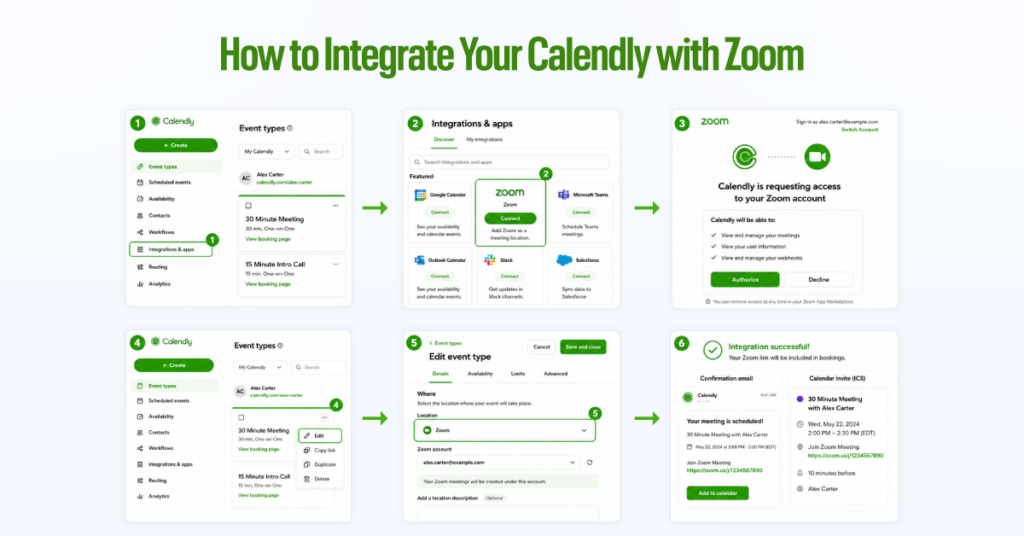
How to Integrate Your Calendly with Zoom
- Log in to your Calendly account
- Find Integrations & Apps on your left-hand side navigation panel
- Find Zoom in the list (usually it’s on the top row) and click Connect
- Authorize Calendly to access your Zoom account via OAuth; you’ll be redirected to Zoom’s login page
- Return to Calendly and go to your Event Types
- Edit any event type → scroll to Location → select Zoom
- Save the event type
- Do a test booking to confirm the Zoom link appears in the confirmation email
Benefits of Zoom Integration
Once connected, Zoom link generation is fully automatic. Here’s what happens with every new booking:
- A unique Zoom meeting link is created instantly.
- The link is embedded in the calendar invite for both you and your invitee
- Confirmation and reminder emails from Calendly include the link automatically
- Your Google Calendar or Outlook updates in real time
You don’t touch anything. The invitee clicks the link in their calendar. The meeting starts.
One thing to check before you go live: Zoom Free accounts cap group meetings at 40 minutes. If you run demos, discovery calls, or team meetings through Calendly, confirm your Zoom plan supports the meeting length you’re scheduling. Paid plans (Pro and above) remove this limit.
Calendly Zoom Integration Troubleshooting Tips
Zoom link not appearing in the confirmation email
This almost always means Zoom wasn’t selected as the location inside the event type settings. Go to your Event Types → edit the specific event → check that Location is set to Zoom (not “Invitee’s location” or another platform). Save and test again.
Meetings hitting the 40-minute cap unexpectedly
You’re on a Zoom Free account. Upgrade to Zoom Pro or restructure your event types to keep group meetings under 40 minutes. One-on-one calls are not affected.
Zoom and Calendly are disconnecting after a password change
Reconnect the integration from Calendly’s Integrations menu. OAuth tokens expire when Zoom credentials change. Takes two minutes to fix.
Calendly with Google Meet Integration
Google Meet is the natural choice for teams already inside Google Workspace. If you’ve already connected your Google Calendar to Calendly, setting up Meet takes under 2-minutes.
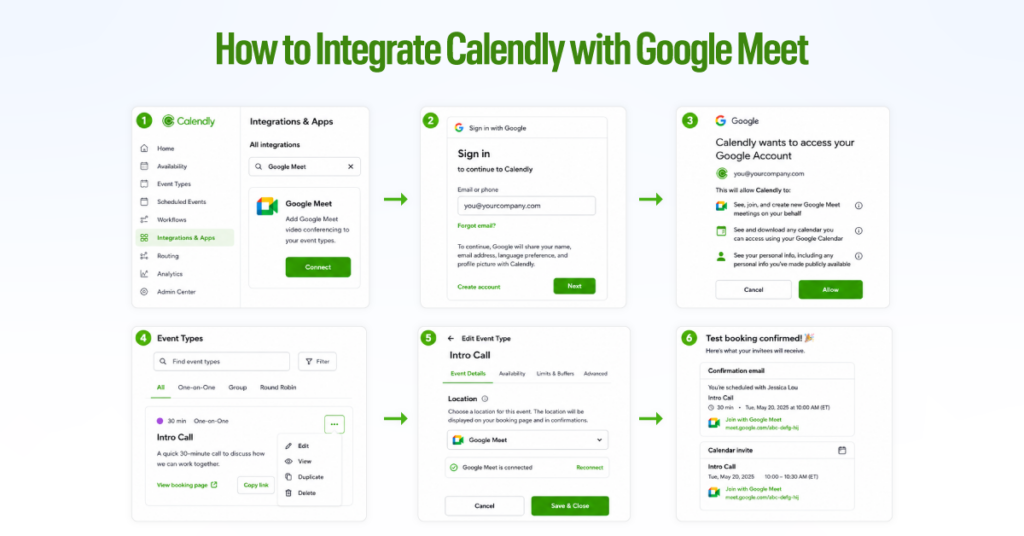
How to Integrate Your Calendly with Google Meet
- Log in to your Calendly account
- Find Integrations & Apps on your left-hand side navigation panel
- Find Google Meet in the list and click Connect
- Go to your Event Types and edit the relevant one
- Under Location, select Google Meet
- Save the event type settings
- Do a test booking and verify that a Meet link appears in the calendar invite and confirmation email
If you haven’t connected your Google Calendar yet, connect it first. Learn how to connect Google Calendar here.
Confirm Google Meet Links Appear in Scheduled Events
After setup, this is what to verify:
- Open a test booking confirmation email — the Meet link should be there
- Check the Google Calendar invite — Meet link should be embedded, not missing
- Click the link to confirm it loads a live Meet room
One important step most people skip: Go to Google Calendar settings → Event Settings → turn off “Automatically add video calls to events I create.”
If you leave this on, Google Calendar generates its own Meet link, and Calendly generates one as well. Your invitees see two different links in the same invite. That’s confusing, and some will click the wrong one. Disable automatic Meet link generation in Google Calendar and let Calendly handle it exclusively.
Google Meet + Calendly Troubleshooting Tips
Two Meet links are appearing in the invite.
This is the duplicate link problem.
Go to Google Calendar settings → Event Settings → disable “Automatically add video calls to events I create.”
Now, only one source(calendly) should generate the link.
The meeting link is missing from the confirmation email.
Check that Google Meet is selected as the Location in the specific event type, not just connected at the account level. Each event type has its own location setting.
Link shows, but leads to “meeting not found” error.
Usually, it’s a sign that the Google Calendar connection broke.
Go to Calendly → Integrations → disconnect and reconnect Google Calendar.
Then re-save your event type with Google Meet as the location.
Connect Calendly with Microsoft Teams
For organizations running on Microsoft 365, Teams is the hub for everything. Calendly’s Teams integration creates a fresh, unique meeting link for every booking, with all details embedded in the calendar invite.
How to Integrate Your Calendly with Microsoft Teams
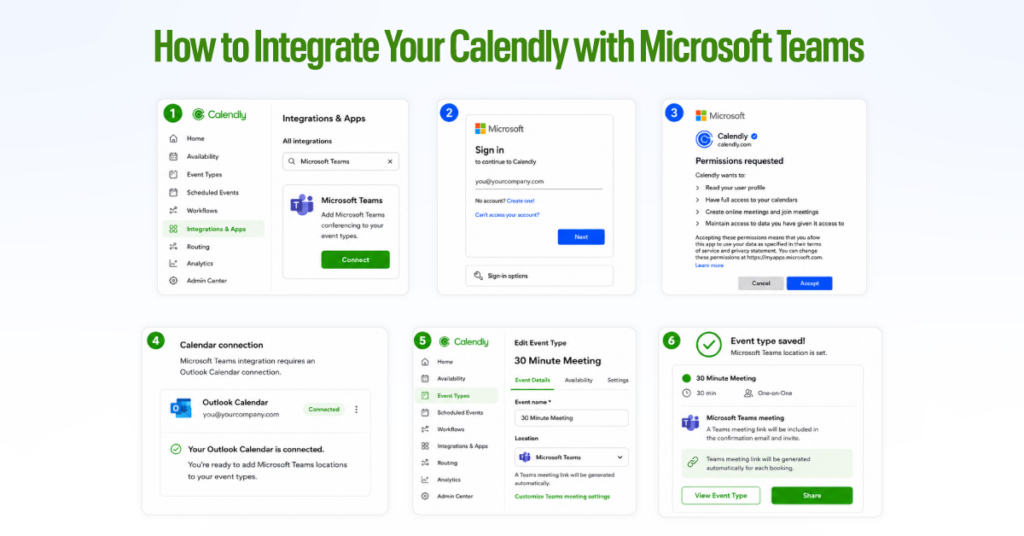
- In Calendly, go to Integrations and search for Microsoft Teams
- Click Connect, and you’ll be prompted to sign in with your Microsoft 365 account
- Authorize the connection via OAuth
- Connect your Outlook Calendar if you haven’t already (Teams integration requires this)
- Go to your Event Types → edit → set Location to Microsoft Teams
- Save and confirm
License check before you start: Microsoft Teams features vary by plan. Basic meeting functionality works on most Business plans. Breakout rooms and meeting transcription require Microsoft 365 Business Standard or above. Confirm your plan before enabling features you expect to use through Calendly-booked meetings.
Ensure Teams Meeting Links and Invites Work Properly
After setup, every Calendly booking automatically generates a Teams meeting link. It appears in:
- The calendar invite (Outlook and Google Calendar both display it correctly)
- The confirmation email is sent to your invitee immediately after booking
- Any reminder emails Calendly sends before the meeting
To verify it’s working: make a test booking, open the confirmation email, click the Teams link, and confirm it loads your meeting room. If it asks for lobby approval, it means your Teams lobby settings are active.
Microsoft Teams + Calendly Troubleshooting Tips
The Teams link is not generating after setup.
The most common cause is that Outlook Calendar isn’t connected. Teams integration in Calendly runs through your Outlook connection. Go to Integrations → connect Outlook Calendar → then return to your Event Types and re-save with Teams as the location.
Invitees are stuck in the lobby indefinitely.
Your Teams lobby policy requires host approval for external guests. This is actually correct behavior for client meetings; log in to Teams before the meeting starts to admit them. If you want guests to bypass the lobby, adjust this in the Microsoft Teams Admin Center under Meeting Policies.
The Teams meeting link appears, but doesn’t work for external guests.
Check your organization’s Teams external access settings. If your IT admin has restricted external access, guests outside your domain can’t join. This is a Teams admin setting, not a Calendly issue.
3 Common Calendly Integration Issues & How to Fix Them
1. Calendly Not Generating a Meeting Link Automatically
The video platform isn’t set as the Location inside that specific event type. Connecting an integration at the account level doesn’t automatically apply it to all event types. You have to set it per event type.
How to Fix:
Go to Calendly → Event Types → edit the affected event → scroll to Location → select your video platform → save. Do a test booking immediately after to confirm.
2. Wrong Video Platform Appearing in Booking Confirmation
You have multiple video platforms connected, and the wrong one is assigned to that event type. Calendly supports multiple integrations simultaneously, but each event type uses whichever platform you assigned to it.
How to Fix:
Go to the specific event type → Location → switch to the correct platform → save. If you manage multiple event types across different platforms, audit each one individually to confirm the right platform is assigned.
3. Calendar Not Syncing After Integration
The calendar connection has broken. Usually, after a password change, a Google/Microsoft security prompt is not approved, or a token expires.
How to Fix:
Go to Calendly → Integrations → disconnect the calendar → reconnect it fresh. Re-authorize when prompted. Then check one upcoming booking to confirm it syncs correctly.
Which Calendly Integration Should You Choose?
It depends on the tools your team already uses and the meetings you’re running. Here’s a straight comparison:
| Zoom | Google Meet | Microsoft Teams | |
| Ease of Setup | Easy | Very Easy | Easy |
| Free Plan Support | Limited (40-min cap for groups) | Yes (with Google account) | No (requires M365 plan) |
| Auto Link Generation | Yes | Yes | Yes |
| Recording | Yes (paid plans) | Yes (Workspace Business+) | Yes (M365 Business Standard+) |
| Best For | External client calls, B2B sales | Internal teams, Google Workspace users | Microsoft 365 orgs, enterprise teams |
Best Choice by Use Case
Freelancers and small businesses:
Google Meet is the easiest starting point. If you have a Google account, you’re mostly set up already. No extra paid tools required for basic use.
Teams and enterprise organizations
Match your video platform to what your team already uses. If your company runs on Microsoft 365, use Teams. If it runs on Google Workspace, use Meet. Don’t introduce a third platform — your team won’t adopt it.
Client meetings and sales calls
Zoom is the strongest choice here. It’s the most widely recognized platform for external meetings. Most clients already have it installed. The professional experience (waiting rooms, branding, reliable links) reinforces your credibility.