Calendly does a great job helping teams book meetings and remove friction from scheduling, but when it comes to analytics and reporting, the native dashboard has real limitations. You’ll get basic activity data, but if you want to track revenue influence, campaign attribution, or pipeline performance, you’ll need to build around it.
The good news? With the right setup, Calendly data can become a powerful part of your reporting stack. You just have to know what’s possible out of the box, what’s missing, and how to extend it into tools like your CRM, Google Sheets, or Looker Studio.
What You Can Track with Calendly’s Native Reporting?
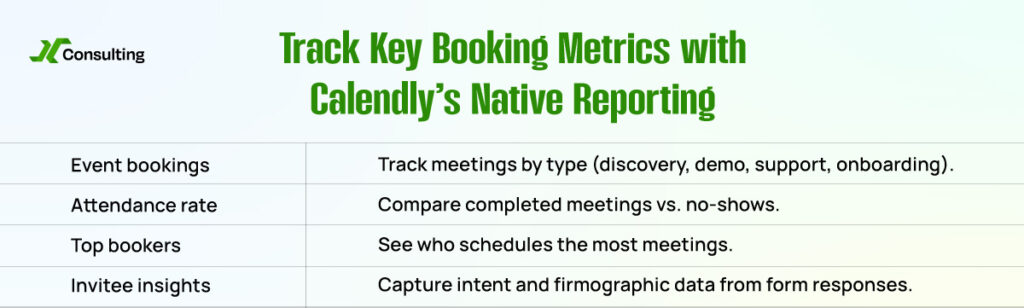
Calendly provides a lightweight dashboard that works well for surface-level metrics. It gives visibility into team activity and top-line performance trends. For day-to-day operations, this is usually enough.
Here’s what you’ll be able to measure directly inside Calendly:

Total bookings by event type: Track the number of meetings being scheduled across discovery calls, demos, support check-ins, and onboarding sessions.
No-show vs. completed rates: If team members mark meetings as “no-show” or “completed,” you can measure how often people follow through.
Top-performing users: See who on your team is booking the most meetings. Great for understanding rep engagement or regional activity.
Invitee responses: View answers to your custom booking form questions. This helps capture firmographic data or intent signals at the time of booking.
These reports are useful for team operations, but they fall short when it comes to end-to-end performance tracking, especially when you need to tie meetings to revenue.
What You Can’t Track Natively (But Probably Want To)
Calendly stops short when it comes to sales and marketing attribution. There are a few critical gaps in the out-of-the-box reports that limit your ability to make data-driven decisions:
Revenue attribution: Calendly doesn’t show you which meetings led to closed-won deals or revenue.
Multi-event conversion paths: If a lead attends a webinar, then a discovery call, then a proposal meeting, there’s no way to see that journey inside Calendly.
Campaign performance: You can’t track how different campaigns, ad channels, or UTM sources perform in terms of booked meetings or outcomes.
Pipeline influence: Calendly doesn’t connect bookings to opportunity stages or deal progression unless synced with your CRM.
Without these insights, it’s difficult to quantify the impact of Calendly on your funnel and revenue outcomes. That’s where extensions and integrations come in.
How to Extend Calendly’s Reporting Capabilities?
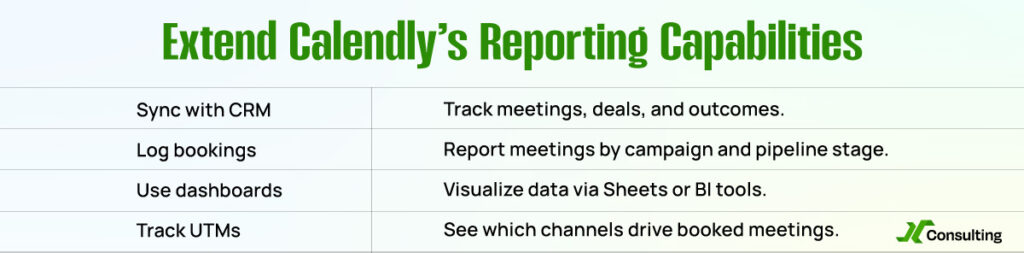
To unlock deeper reporting, you’ll need to integrate Calendly with other tools, such as your CRM, marketing attribution system, or analytics dashboards. Here’s how to do it:
Sync Calendly to your CRM
Whether you use HubSpot, Salesforce, or another CRM, integrating Calendly is a crucial step. Use native integrations or middleware, such as Zapier, to push booking data into contact, lead, or opportunity records. This lets you track meeting outcomes, associate meetings with deals, and analyze down-funnel performance.
Build a “Booking Activity” object
For best results, create a custom object or activity log in your CRM that represents each Calendly booking. Link it to associated contacts, accounts, campaigns, and deals. You can then build reports showing, for example, how many meetings were booked per campaign, or how meetings influenced pipeline movement.
Push booking data to Google Sheets or Looker Studio
If your team prefers spreadsheets or custom dashboards, you can use Zapier or Make to send Calendly event data into Google Sheets. From there, build visualizations in Looker Studio or other BI tools. Track metrics like bookings per campaign, meeting type conversion rates, or lead velocity after scheduling.
Track UTM source and campaign data
Calendly doesn’t natively capture UTM values, but you can append UTM parameters to your booking links. Then use hidden fields or tools like Clearbit or Segment to capture that data and pass it into your CRM or analytics platform. This gives you insight into which channels or campaigns are actually driving qualified meetings.
Build for Attribution Early
The most accurate Calendly reporting comes from tying every meeting to your CRM funnel. This means treating every scheduled event as a meaningful activity and logging it with context: who booked it, when, how, why, and what happened next.
Here’s how to do it well:
- Create a “Meeting Booked” activity in your CRM
- Link that activity to the contact, company, deal, and campaign
- Populate metadata like meeting type, date, form answers, and UTM values
- Use reports and dashboards to analyze meetings per lifecycle stage, source, or outcome
By doing this, you transform Calendly into a pipeline intelligence tool—one that helps you see which efforts are creating momentum and which need adjustment.
Final Thoughts
Calendly makes scheduling seamless, but its default reporting is only a starting point. To measure ROI, drive smarter decisions, and optimize your funnel, you need to push Calendly data into tools that provide a comprehensive view.
Whether it’s syncing to your CRM, visualizing in Google Sheets, or embedding UTM parameters for source tracking, the payoff is huge. You’ll gain insight into what drives meetings, what those meetings lead to, and how to replicate that success.
Make Calendly more than just a scheduling tool. Make it a data engine for your go-to-market strategy.