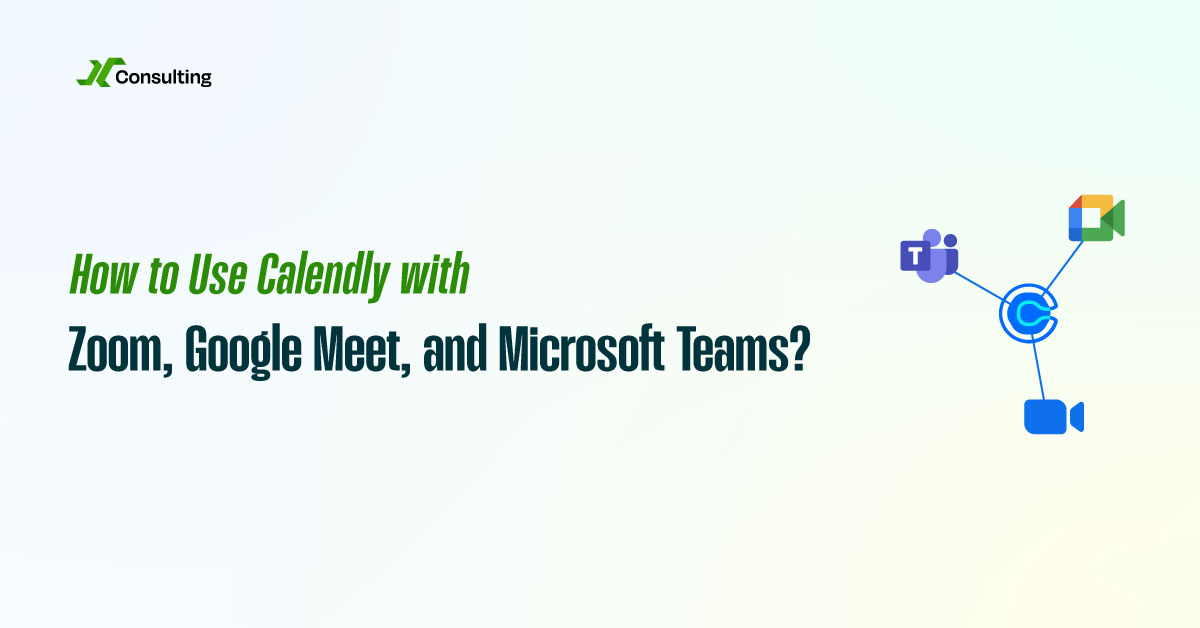
Your scheduling tool should do more than find an open time slot. It should also create a seamless, professional meeting experience from the moment someone books with you. Calendly video conferencing integration makes that possible by connecting directly with Zoom, Google Meet, and Microsoft Teams automatically generating meeting links, syncing with calendars, and eliminating manual setup work entirely.
This guide walks you through exactly how to connect each platform, apply best practices, and fine-tune your setup so every meeting runs smoothly and reflects well on your brand.
Key Takeaways
- Calendly integrates natively with Zoom, Google Meet, and Microsoft Teams, automatically generating unique meeting links for every booking.
- The setup process takes under five minutes for each platform and requires only OAuth authorization through Calendly’s Integrations menu.
- Each platform has specific best practices Waiting Rooms for Zoom, duplicate link prevention for Google Meet, and lobby controls for Teams.
- Automated meeting links eliminate manual copy-pasting, reduce errors, and prevent the “Where’s the link?” problem that erodes professionalism.
- The event description field is a powerful, underused tool for adding agendas, prep instructions, and key documents to every meeting.
- License tier matters always verify that your Zoom, Google Meet, or Teams plan supports the meeting features you intend to use through Calendly.
Why Video Conferencing Integration Matters for Scheduling
Manually managing meeting links is one of the most common sources of professional friction. Someone books a call, you copy a Zoom link, paste it into an email, and hope nothing breaks. When it does a stale link, a missing invite, a wrong room the first impression suffers before the meeting even starts.
Calendly’s native video conferencing integrations remove this problem entirely. Once connected, every new booking triggers an automatic meeting link that is embedded in the calendar invite and confirmation email.

This matters most for client-facing teams sales, customer success, consulting where the meeting experience is part of the product.
How to Connect Calendly to a Video Conferencing Platform
The setup process is nearly identical across all three major platforms. Here is how to get started:
- Log in to your Calendly account and navigate to the top-right profile menu.
- Go to Integrations from the main menu or settings panel.
- Select your video platform Zoom, Google Meet, or Microsoft Teams.
- Click Connect and authorize Calendly to access your account via OAuth.
- Choose which event types should use this integration (you can assign different platforms to different event types).
- Save your settings. Calendly will now auto-generate a unique meeting link for every new booking.
Once active, the meeting link appears automatically in:
Any reminder emails Calendly sends before the meeting
The confirmation email sent to your invitee
The calendar event added to both parties’ calendars
Not sure which setup is right for your team?
Every business uses Calendly differently and the right video conferencing configuration depends on your tools, your team size, and how your clients book with you.
The consultants at Calendly Consulting specialize in building custom Calendly workflows that connect your scheduler, your video platform, and your CRM into one seamless system.
Talk to a Calendly Consultant and get a personalized recommendation at no cost.
Zoom + Calendly: Best Practices

Calendly + Zoom: Setup and Best Practices
Zoom is the dominant video conferencing tool for B2B teams globally. Calendly’s Zoom integration is one of its most robust, and for good reason.
When you connect your Zoom account, Calendly generates a dedicated, private Zoom meeting link for every booking. These links are tied directly to your Zoom account and are not recycled meaning each meeting gets its own secure room.
Best practices for Calendly + Zoom:
Check your Zoom license. Free Zoom accounts cap group meetings at 40 minutes. If you run demos or group calls, ensure your account tier supports the meeting length you are scheduling through Calendly.
Enable Zoom Waiting Rooms. This prevents early guests from entering before you are ready. It also gives you a buffer if your previous call runs long. Configure this inside your Zoom account settings under Security.
Apply Zoom Meeting Templates. If your company uses Zoom branding (custom backgrounds, logos), apply a consistent template so every client-facing meeting looks polished.
Use Zoom’s Recording Settings. Decide in advance whether meetings should be auto-recorded to the cloud. This is especially useful for onboarding calls, demos, or any meeting requiring documentation.
Google Meet + Calendly: Best Practices

Google Meet is the natural choice for teams running entirely within Google Workspace- Gmail, Google Calendar, Google Drive, and beyond. The Calendly integration with Google Meet works through your Google Calendar connection, making setup especially fast if you have already linked your Google Calendar to Calendly.
When a meeting is booked, Calendly automatically generates a unique Google Meet link and inserts it into the calendar invite. Both you and your invitee receive it without any manual action.
Best practices for Calendly + Google Meet:
Test the link before high-stakes calls. Google Meet links are reliable, but running a quick test with a colleague before an important client meeting adds an extra layer of confidence.
Disable automatic Meet link generation in Google Calendar. By default, Google Calendar may try to add its own Meet link to every event. This creates a duplicate link situation that confuses guests. Go to Google Calendar settings → Event Settings → turn off “Automatically add video calls to events I create.”
Use Google Meet’s host controls. As the host, you can mute participants on entry, lock the meeting once everyone has joined, and manage screen sharing permissions all useful for structured client calls.
Leverage Google Workspace integration. If your company uses Google Workspace, your Meet links are automatically tied to your organizational account, providing built-in security, recording access (on Business and Enterprise tiers), and attendance tracking.
Microsoft Teams + Calendly: Best Practices

For organizations running on Office 365, Microsoft Teams is the hub for communication, collaboration, and meetings. Calendly’s Teams integration creates a fresh, unique Teams meeting link for each booking complete with all meeting details embedded in the calendar invitation.
Best practices for Calendly + Microsoft Teams:
Verify your Office 365 license. Like Zoom, Microsoft Teams features vary by license tier. Ensure your plan supports the meeting sizes and features you intend to use for example, breakout rooms require a specific license level.
Configure your Teams Meeting Lobby. In the Microsoft Teams admin center, set lobby policies to control who can bypass the lobby and join directly versus who must wait for host approval. For external client meetings, requiring lobby entry adds a layer of control.
Set recording and transcription defaults. Teams offers built-in transcription (on eligible plans). Decide whether to auto-enable this feature for Calendly-booked meetings, particularly for discovery calls or interviews where notes are valuable.
Manage participant permissions. In Teams meeting options, configure whether participants can share their screen, unmute themselves, or present. Locking these down for large group sessions improves meeting discipline.
Improve Every Meeting with Agendas and Pre-Call Instructions
Regardless of which video platform you use, the Calendly event description field is one of the most underused tools available. Every event type in Calendly allows you to add a custom description that appears in the confirmation email and calendar invite.
Use this space to include:
- A short meeting agenda – even three bullet points set clear expectations.
- Pre-call questions or prompts – ask invitees to think through specific topics before joining.
- Relevant documents or links – share a one-pager, proposal, or product overview in advance.
- Preparation tips – for technical calls, remind guests to test their audio and video beforehand.
When both parties arrive prepared, meetings move faster and deliver more value. This small addition to your Calendly setup has an outsized impact on meeting quality and perceived professionalism.
Get Your Calendly Video Integration Set Up the Right Way
Setting up Calendly with Zoom, Google Meet, or Microsoft Teams sounds straightforward but getting it fully optimized for your team, your CRM, and your client workflows is a different story.
At Calendly Consulting, we handle the entire setup for you: integrations, event type configuration, automation, and beyond. Whether you’re onboarding a new team or troubleshooting an existing setup, our consultants are ready to help. Get a Free Quote Today.
Final Thoughts
Calendly’s integrations with Zoom, Google Meet, and Microsoft Teams are designed to eliminate friction. No more manual copy-pasting. No more missed links. Just seamless, secure, and smart meeting scheduling that works across all major platforms.
By combining automation with a few customization strategies, you’ll deliver a better meeting experience that reflects your brand and respects everyone’s time.