You watched someone click your “Book a Call” button. Everything seems to work, but the booking never happens. You will never know exactly why. But if you have felt that particular sting of a near-miss you cannot diagnose, this article is for you.
Most Calendly problems are hard to spot. People will not tell you that your booking page was confusing, had too many options, or did not match your brand. They just leave without any further communication. You only see fewer meetings on your calendar.
Key Takeaways
- Calendly works best when you treat it as part of your sales process, not just a scheduling link.
- Brand the booking experience, connect Calendly to your CRM, and keep visitors on your own website.
- Show one clear booking option, and make sure the whole flow works on mobile.
- A better setup books more meetings and lets your team handle them with far less manual work.
Why Calendly Embeds Fail to Convert
Once a visitor is interested, picking a time should feel like the next natural step. A good embed makes that easy. Small Calendly embed mistakes, like a pop-up not working, a widget slow to load, or mobile embed issues, can get in the way. Visitors who hit that kind of friction leave the webpage without any complaint.

How you embed Calendly, configure your event types, connect your tools, and guide people after booking all feed directly into your conversion rate.
A poor setup sends interested visitors away before they commit. A good one takes the same traffic and turns it into a reliably full calendar, with less manual work on the back end. In the next section, we’ll discuss common Calendly embed mistakes and how to avoid them.
Mistake #1: Using a Default Calendly Link Instead of an Embedded Scheduler
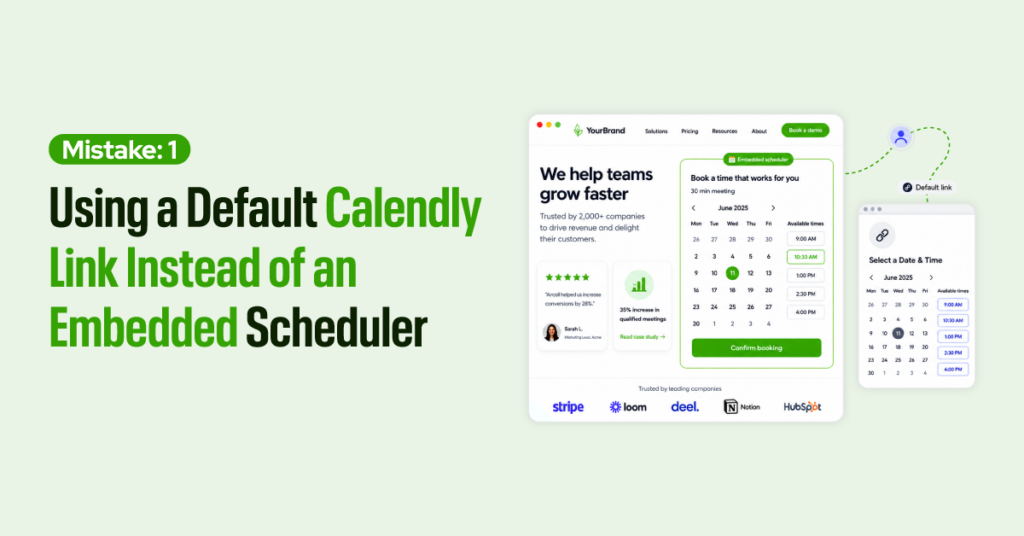
Sharing a raw Calendly URL is the scheduling equivalent of sending someone to a competitor’s lobby to fill out a form. Technically, it works, but it pulls visitors away from the page where your testimonials, case studies, and trust-building content are quietly doing their job.
When someone lands on a generic Calendly page with default colors and no brand context, the experience feels disconnected. Calendly gives you three embed options, and the right one depends on the page.
Inline Embed
The full calendar renders right on the page. Visitors pick a time and book without leaving. This is your best choice when scheduling is the page’s sole purpose, such as a dedicated booking page or a post-ad landing page.
Pop-Up Widget
A button sits in the corner of the screen. Click it, and the calendar opens in an overlay. This suits pages where you want booking to stay accessible without taking over the layout: service pages, blog posts, or long-form content where the reader is not done yet.
Pop-Up Text
The scheduler opens when someone clicks a link inside your copy. Use this when you want the call to action to feel native to the paragraph rather than shouting from a button.
The format matters less than the principle. Keep visitors on your website. The booking step should feel like a continuation of your brand, not an escape hatch to someone else’s.
Mistake #2: Displaying Too Many Event Types
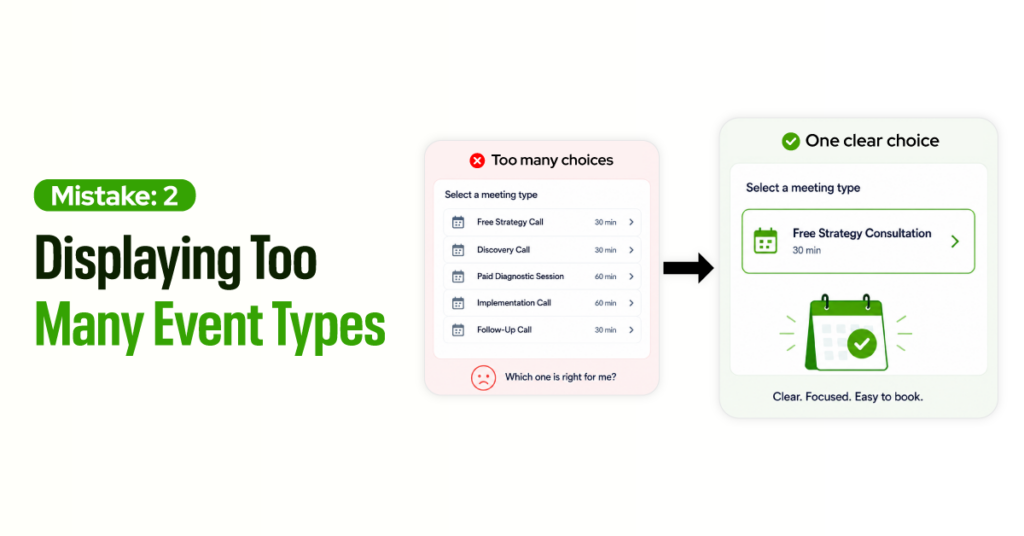
More options usually mean more confusion. Psychologists call it the paradox of choice. In the well-known Iyengar and Lepper jam study, shoppers shown 24 varieties were far less likely to buy than those shown only six. Booking pages behave the same way.
When a visitor sees five different meeting types, they hit a small but real question: which one is right for me? When people are unsure, they are most likely to leave. The fix is to show one primary event type per page.
If someone clicked an ad for a free strategy consultation, that page should show only that option. If someone is exploring a paid diagnostic session, give them a dedicated page for it.
Your other event types do not disappear. They just stop competing with each other on the same screen.
Mistake #3: No Post-Booking Redirect or Thank-You Page
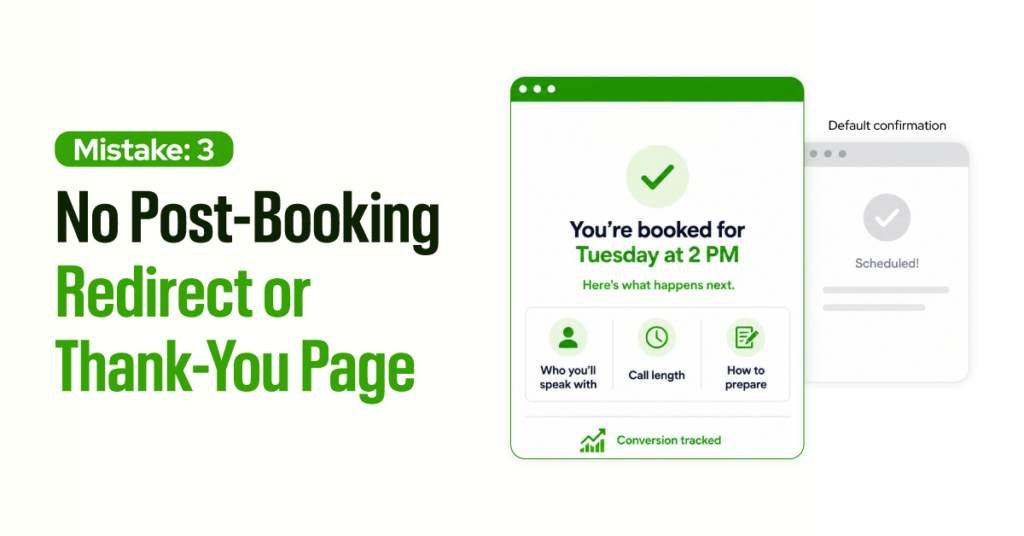
When someone has booked a meeting, they’ve crossed the most important threshold in your sales process. They picked a time and committed.
Calendly’s default confirmation screen marks the moment with a calendar invite and a generic message. You can do much better than that.
What your thank-you page should actually say
Start by confirming the booking in your own voice. Instead of saying “Your appointment has been scheduled,” try something like “You’re booked for Tuesday at 2 PM. Here’s what to expect before we talk.”
Then tell them what comes next. Who will they speak with? How long is the call? Should they prepare anything?
Answering those questions right after booking lowers anxiety, lifts show rates, and positions you as someone who has their act together before the call even starts.
You can also add a short testimonial, a relevant case study, a brief welcome video, or a helpful resource. That reinforces their decision and keeps them engaged, instead of leaving them wondering whether they just signed up for a sales pitch.
Why your thank-you page is your best tracking asset
Here is the part most businesses miss. Your thank-you page is the cleanest conversion event you have.
When someone reaches that page, you know one thing for certain: they completed the booking. That is when your Google Ads conversion tag, Meta Pixel event, or GA4 goal should fire. This is how you connect marketing spend to actual booked meetings.
Calendly’s native confirmation screen is harder to track because it lives on Calendly’s domain. Your own thank-you page gives you full ownership of what fires and when.
Without it, you may get meetings without ever knowing which campaign, keyword, or landing page drove them. That makes your marketing almost impossible to optimize.
Mistake #4: Not Tracking Where Bookings Come From
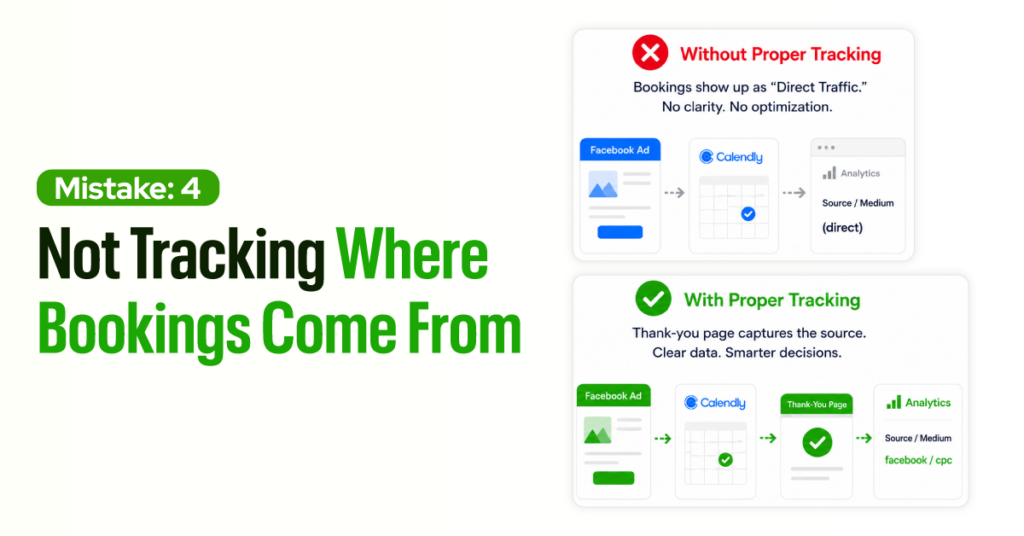
Knowing that someone booked a meeting is not enough. Knowing why they booked, which ad, which page, which traffic source, is what tells you where to spend more and where to stop wasting money.
Many teams assume their tracking works because they added UTM parameters to their Calendly link. But Calendly does not always pass that source data cleanly back to your website analytics.
A visitor can book a call and show up in your reports as direct traffic, even when they arrived from a paid campaign.
The most reliable fix is the thank-you page redirect described above. When someone lands on that page, your analytics platform records the session and the traffic source that brought them in. Now you have a clean line from the marketing channel to the booked meeting.
Some teams need more detail. They want the exact meeting type a visitor booked and the specific ad variation that produced the lead, so they can compare close rates across sources.
Setting up Google Tag Manager gives you that level of control. Budget an hour of developer time. In return, you finally see which campaign produced which booked call, instead of guessing.
Mistake #5: Ignoring Mobile Responsiveness
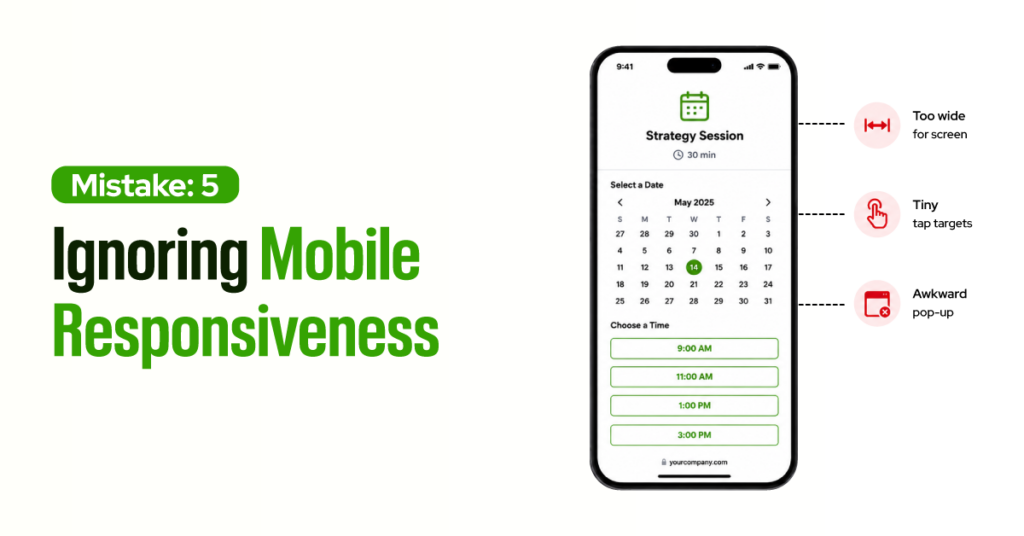
More than 60% of US website traffic now comes from mobile devices, according to StatCounter. If your Calendly embed does not work smoothly on a phone, you are effectively invisible to most of your visitors. Worse, you will never see the drop-off, because they leave without a trace.
The most common Calendly embed mobile issues are subtle:
- The calendar does not fit the screen width.
- Time slots are too small to tap accurately.
- A pop-up widget that looks elegant on a desktop becomes an awkward obstacle on a small screen.
Any one of these is enough to lose a booking. The fix is simple, but it takes hands-on testing. Open your booking page on a real phone, an iPhone, and an Android if you can, and walk through the whole flow:
- load the page,
- select a date,
- pick a time,
- fill out the form,
- Complete the booking, then check the confirmation.
If anything feels off at any step, it is costing you bookings.
If you use a pop-up widget, watch how it behaves on mobile. Overlays that work beautifully on wide screens often create scroll-trapping or viewport overflow on phones.
Mistake #6: Not Branding the Booking Experience
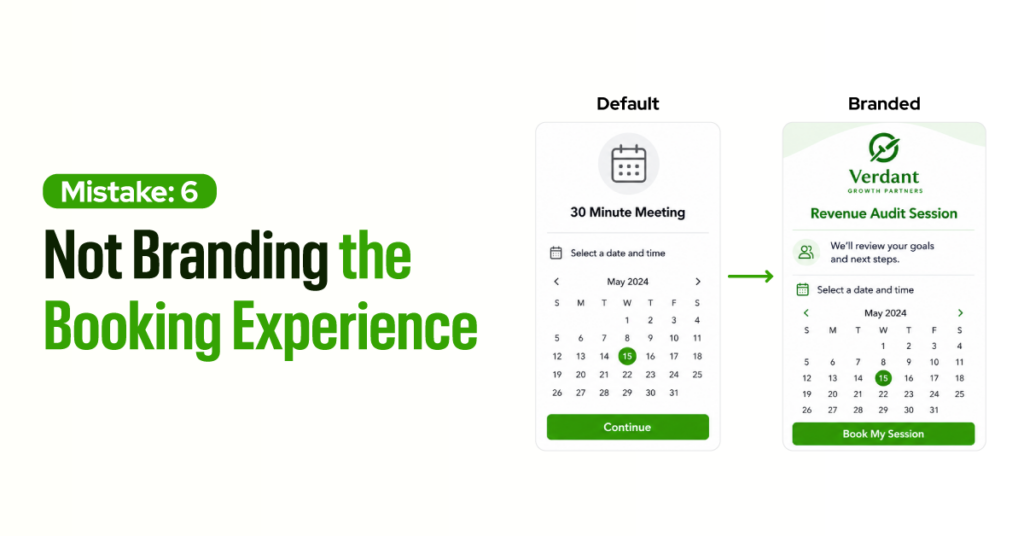
Think about the last time you clicked through to a checkout page that looked nothing like the site you were just on. Did you trust it right away?
That same instinct fires, more quietly, when someone moves from your polished website to a generic Calendly page with default blue accents and an event called “30 Minute Meeting.” The small visual disconnect creates hesitation, which creates abandoned bookings.
Some Calendly embedding best practices include:
- Align the color scheme with your brand.
- Add your logo.
- Rename your events to reflect your process.
- Write a welcome message that sets expectations instead of just confirming a time.
“Revenue Audit Session” communicates purpose and value. “30 Minute Meeting” communicates nothing.
Make the booking experience match the rest of your website. Same colors, clear event names, helpful framing.
Mistake #7: Not Connecting Calendly to Your CRM and Workflow Tools
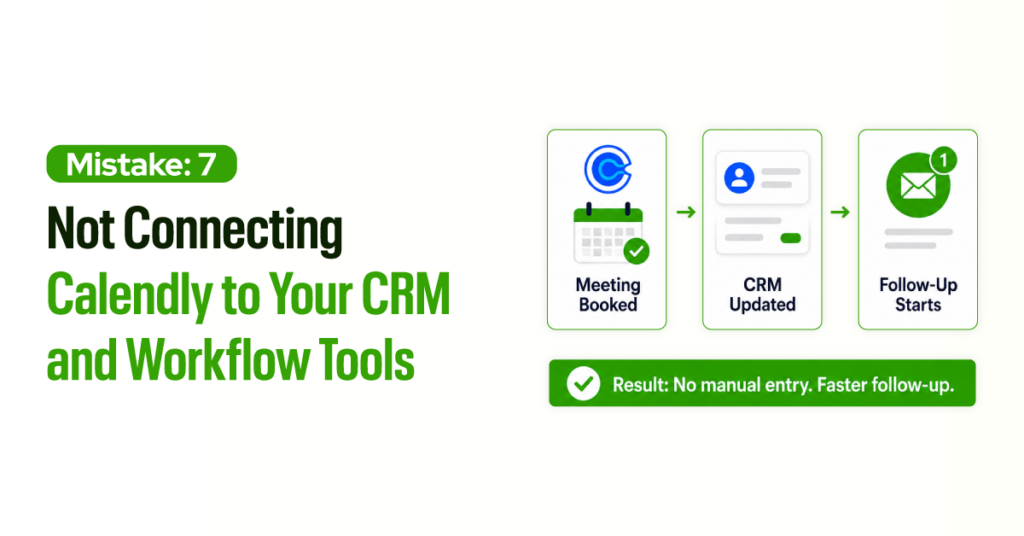
Another common Calendly website embed issue is failing to connect Calendly to your CRM and workflow tools. If someone on your team has to manually copy booking details into your CRM after every call is scheduled, your process has a leak.
Manual data entry is slow, inconsistent, and unnecessary given what Calendly already supports. Calendly connects natively with HubSpot, Salesforce, and several other CRM platforms. Through Zapier or Make, you can extend that to almost any tool in your stack.
Here is what a connected flow looks like.
Someone books a meeting → Their contact is automatically created or updated in your CRM → The meeting is logged against the correct deal or contact record → The deal moves to the correct stage → A follow-up sequence kicks off.
Your rep gets a Slack notification with everything they need to show up prepared. Most native connections, like the HubSpot one, take under 30 minutes to set up.
None of this needs custom development in most cases. Native integrations handle the common flows. Zapier or Make handles the rest.
Mistake #8: Poorly Configured Availability Rules
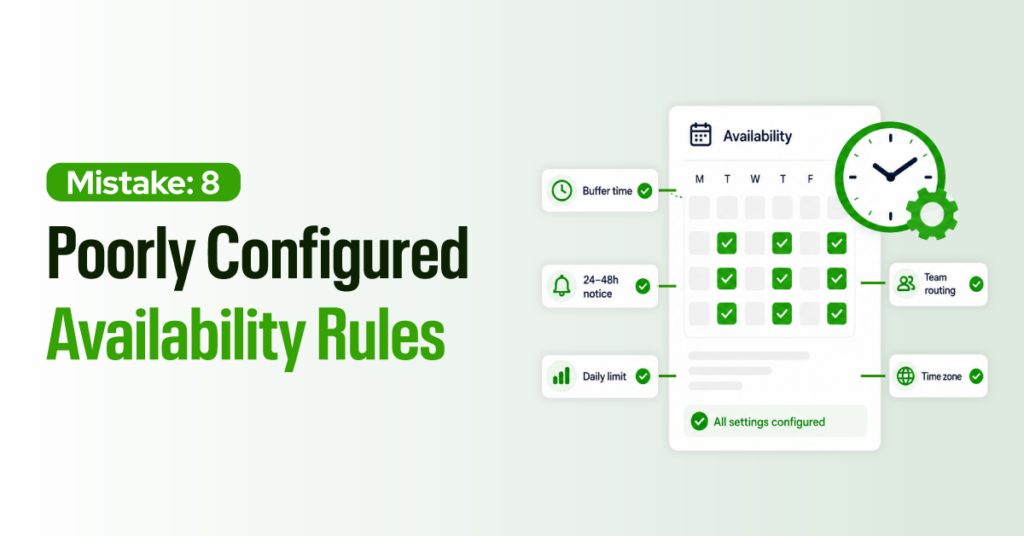
The right availability setup keeps your calendar manageable while keeping booking easy for the visitor.
Buffer time is the most overlooked setting. Even 10 to 15 minutes between meetings gives you space to take notes, reset, and prepare. Without it, back-to-back days turn into a grind, and call quality drops before your last meeting even starts.
Minimum scheduling notice controls how soon someone can book after they discover you. For most service businesses, 24 to 48 hours is the sweet spot.
It prevents last-minute bookings that catch you unprepared, and it still moves fast enough for motivated prospects. It also signals, without saying so, that your time has structure.
Daily meeting limits are worth setting even when your calendar has open slots. Taking six discovery calls in a day is possible. Whether the sixth one gets the same attention as the first is a different question.
Team or round-robin scheduling matters the moment more than one person handles the same type of call. Without it, every booking lands on whoever set up the link, which is rarely the best use of your team.
Time zone settings deserve a final check, especially when your prospects span the country. A 2 PM slot means something different in New York than it does in Los Angeles.
Calendly auto-detects most visitors’ time zones, but your event descriptions should still be clear enough that nobody shows up an hour early or three hours late.
Mistake #9: Ignoring No-Show Prevention
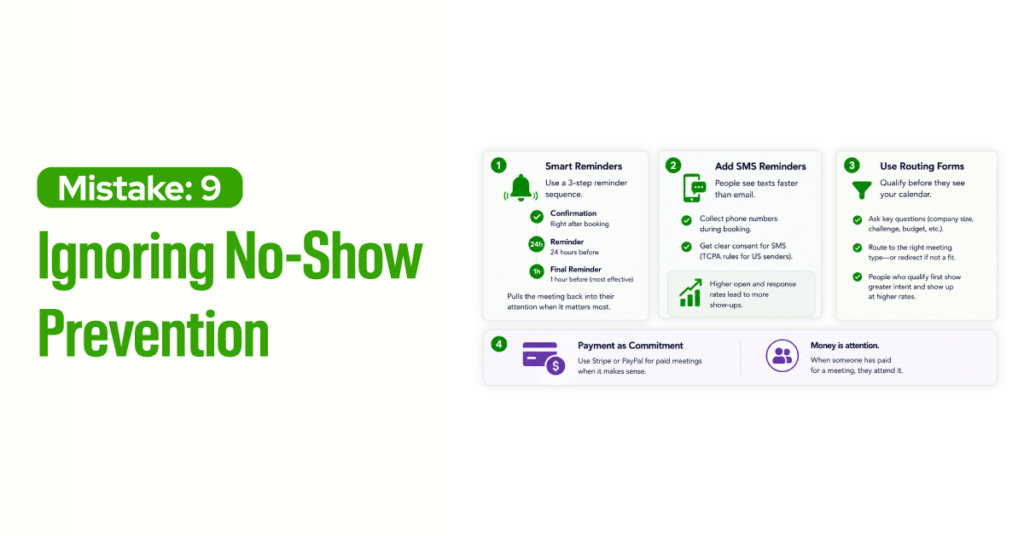
A no-show is not an empty hour. It is a warm lead who picked a time, signaled real interest, then vanished. That one is expensive. Calendly’s reminder system is easy to configure and genuinely effective:
- A confirmation right after booking,
- A reminder 24 hours before the meeting,
- A final reminder one hour before.
That last one matters most. It pulls the meeting back into the person’s attention exactly when it needs to be there. Not the night before, when they may forget again. One hour before, when canceling or rescheduling still feels like a deliberate choice.
SMS reminders add another layer. People see texts faster than email, and the response rate is much higher.
If you collect phone numbers during booking, and you should, adding an SMS reminder is one of the easiest wins available. One note for US senders: text reminders fall under TCPA rules, so make sure your booking form gets clear consent before you start texting.
Routing forms serve a different but related purpose. Calendly Routing lets you ask qualifying questions before someone reaches the calendar.
Ask about company size, current challenge, or budget. Based on the answers, send them to the right meeting type or redirect them if they are not a fit.
People who answer questions before booking have shown greater intent and show up at higher rates because they invested something before the meeting even started.
Payment as commitment works in the right context. Calendly integrates with Stripe and PayPal for this. Money is attention. When someone has paid for a meeting, they attend it.
Mistake #10: Ignoring Privacy Law When Embedding Calendly
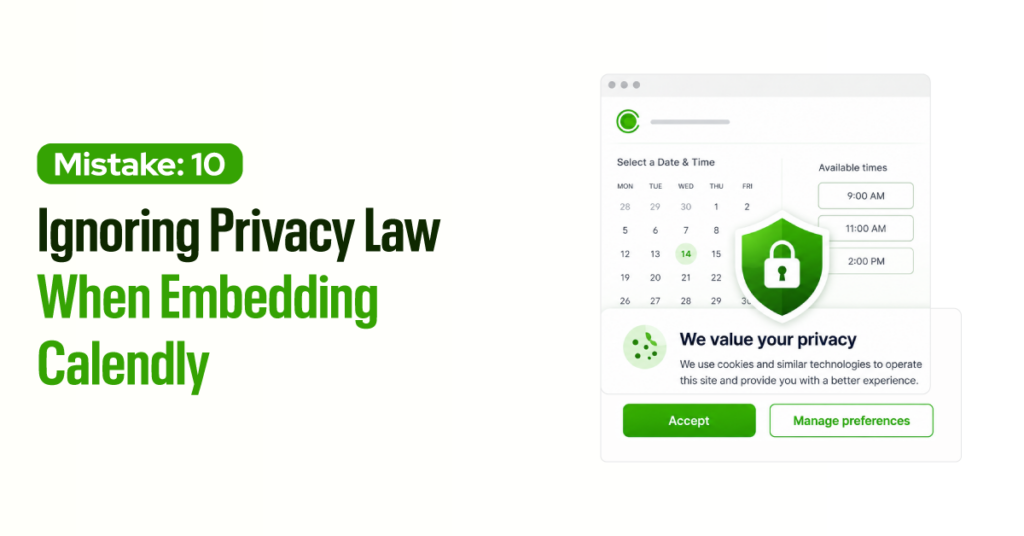
When you embed Calendly, it loads third-party scripts and may set cookies before your visitor has agreed to anything. For a US business, that is no longer a gray area. As of 2026, around 20 states have comprehensive consumer privacy laws on the books, and California leads the pack.
Under the CCPA and its update, the CPRA, you may be required to post clear disclosures and give visitors a way to opt out of having their data sold or shared.
These penalties are not theoretical. California enforces its privacy laws through its own Privacy Protection Agency, which has moved from warning letters to active enforcement, with civil penalties of up to $2,500 per violation and $7,500 per intentional violation.
If your site collects information from visitors in California, Colorado, Connecticut, Virginia, Texas, or any other state with active laws, third-party scripts firing before consent is a real exposure risk.
The practical fix is to connect your Calendly embed to a cookie consent management platform. Cookiebot, Termly, and OneTrust all handle this. The consent tool displays a banner on the first visit and blocks third-party scripts, including Calendly, until the visitor agrees.
In most setups, this means tagging the Calendly script so your consent platform knows when to release it.
Update your privacy policy, too. Explain that you use Calendly to collect booking information and what happens with that data.
Specifically for California, a “Do Not Sell or Share My Personal Information” link is required if your business meets the CCPA thresholds.
Calendly publishes its own privacy and data-processing documentation, including a GDPR Data Processing Agreement, in your account settings. If you handle bookings across multiple states, building your policy on the California standard covers most of what the other state laws require, with a few state-specific additions on top.
Compliance is not only about avoiding problems. It tells visitors, before they have decided whether to trust you, that you handle their information with care. That is a trust signal, not just a legal checkbox.
Bonus: Embedding Calendly Without Optimizing for Performance
Speed is not a nice-to-have. Akamai’s 2017 State of Online Retail Performance report found that even a 100-millisecond delay in load time can cut conversion rates by 7%. On mobile, visitors on slower connections are far more likely to abandon a page before a third-party embed finishes rendering.
If your Calendly widget is one of the first things to load, it may be quietly eating your booking rate before anyone even sees the calendar. A Calendly widget that loads slowly also drags down your Core Web Vitals, especially Largest Contentful Paint, which feeds into how Google ranks the page.
Three adjustments solve most performance issues.
Load Calendly after the page loads. Ask your developer to defer the Calendly script so the main content renders first and the scheduler loads in the background. Visitors see your page right away. The calendar appears a moment later.
Load Calendly only when someone clicks. If your scheduler opens from a button or pop-up, there is no reason to load it for every visitor. A click-triggered load fires the script only when someone signals intent by clicking “Book a Call.” Everyone else gets a faster page.
Turn Calendly Into a Better Booking Experience
Every mistake on this list comes back to the same idea. Calendly works best when you treat it as part of your sales process, not just a scheduling link.
Start with the basics. Keep visitors on your website. Show one clear booking option. Send people to a thank-you page after they book. Track where bookings come from. Make sure the experience works on mobile.
Then improve the rest. Brand the booking experience. Connect Calendly to your CRM. Set clear availability rules. Add reminders. Review compliance and performance.
You do not need to fix everything at once. Each improvement makes the booking process easier, clearer, and more reliable. A better setup books more meetings and lets your team handle them with less manual work.
A quick, honest note on fit: if you have outgrown Calendly’s routing logic or need deeper team workflows, tools like Cal.com, SavvyCal, and Acuity Scheduling are worth a look. For most teams, the principles above matter more than the tool. Fix the setup before you switch the software.